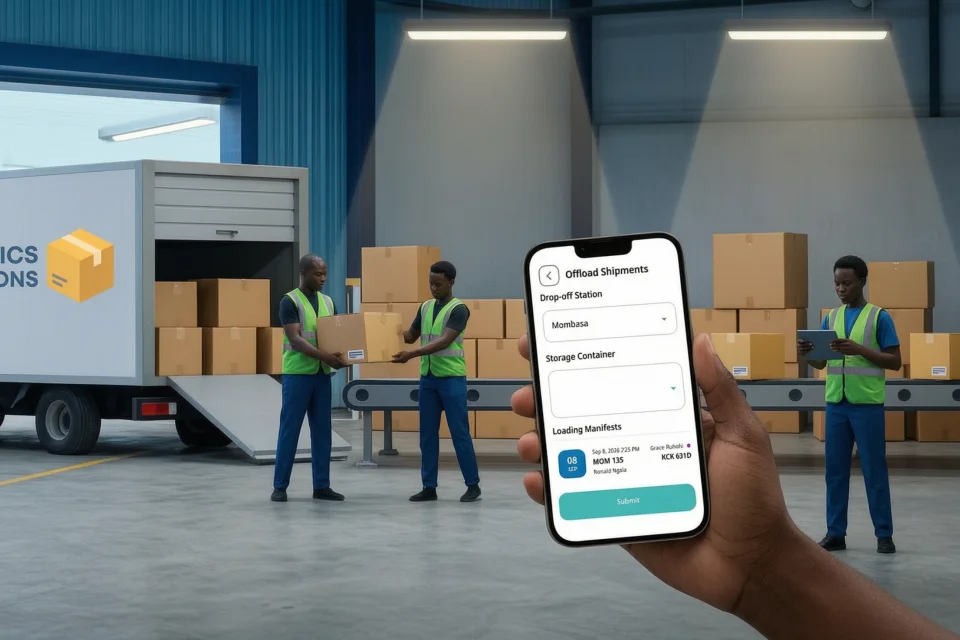
Why Digital Offloading Verification Matters 💡
Offloading is the key bridge between transit and final delivery. By digitally recording every arriving package and assigning it to a local storage container, CargoPal ensures no item is misplaced and provides full visibility for station teams. ⚡
How to Offload a Shipment Step-by-Step 📝
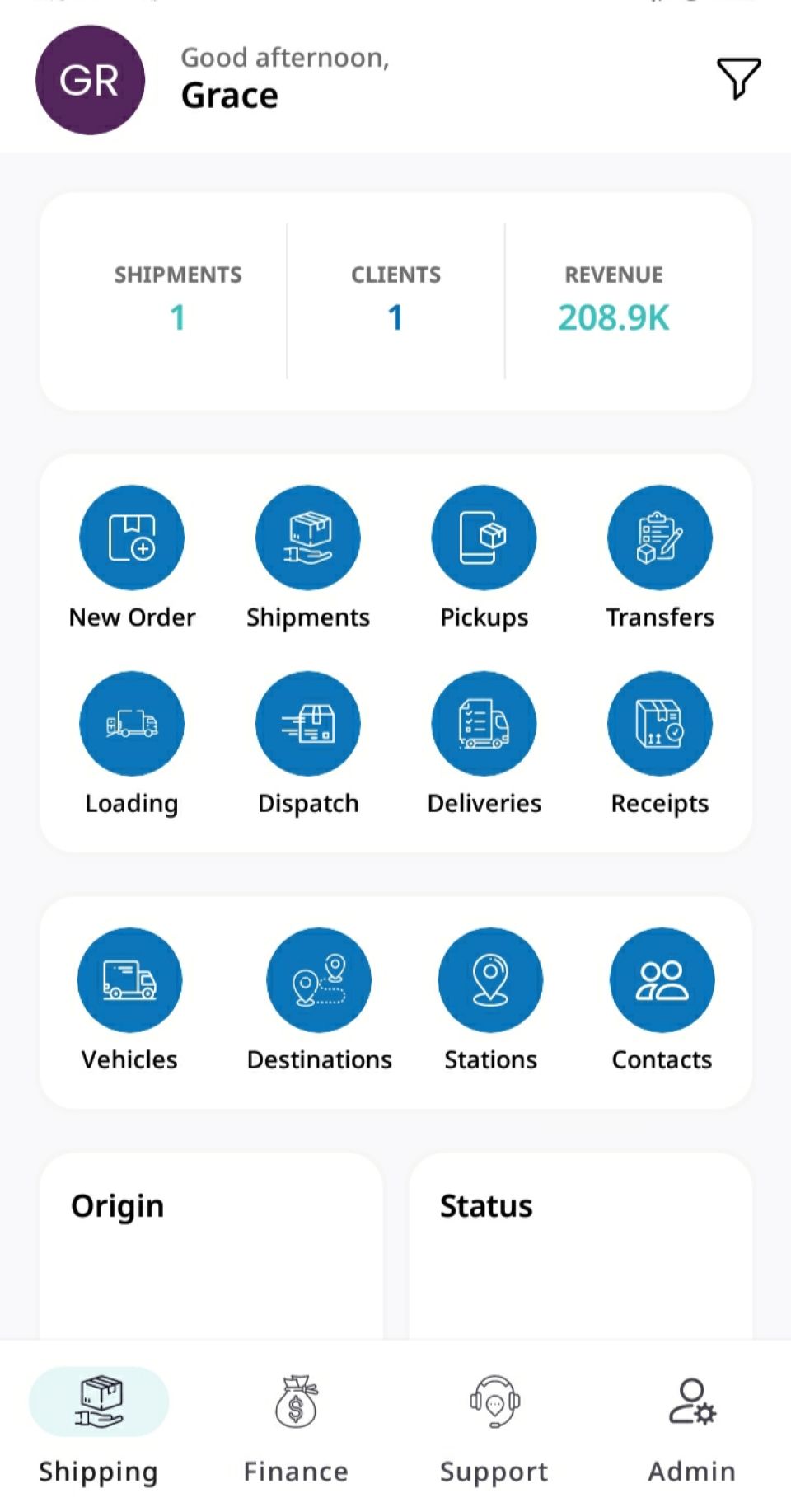
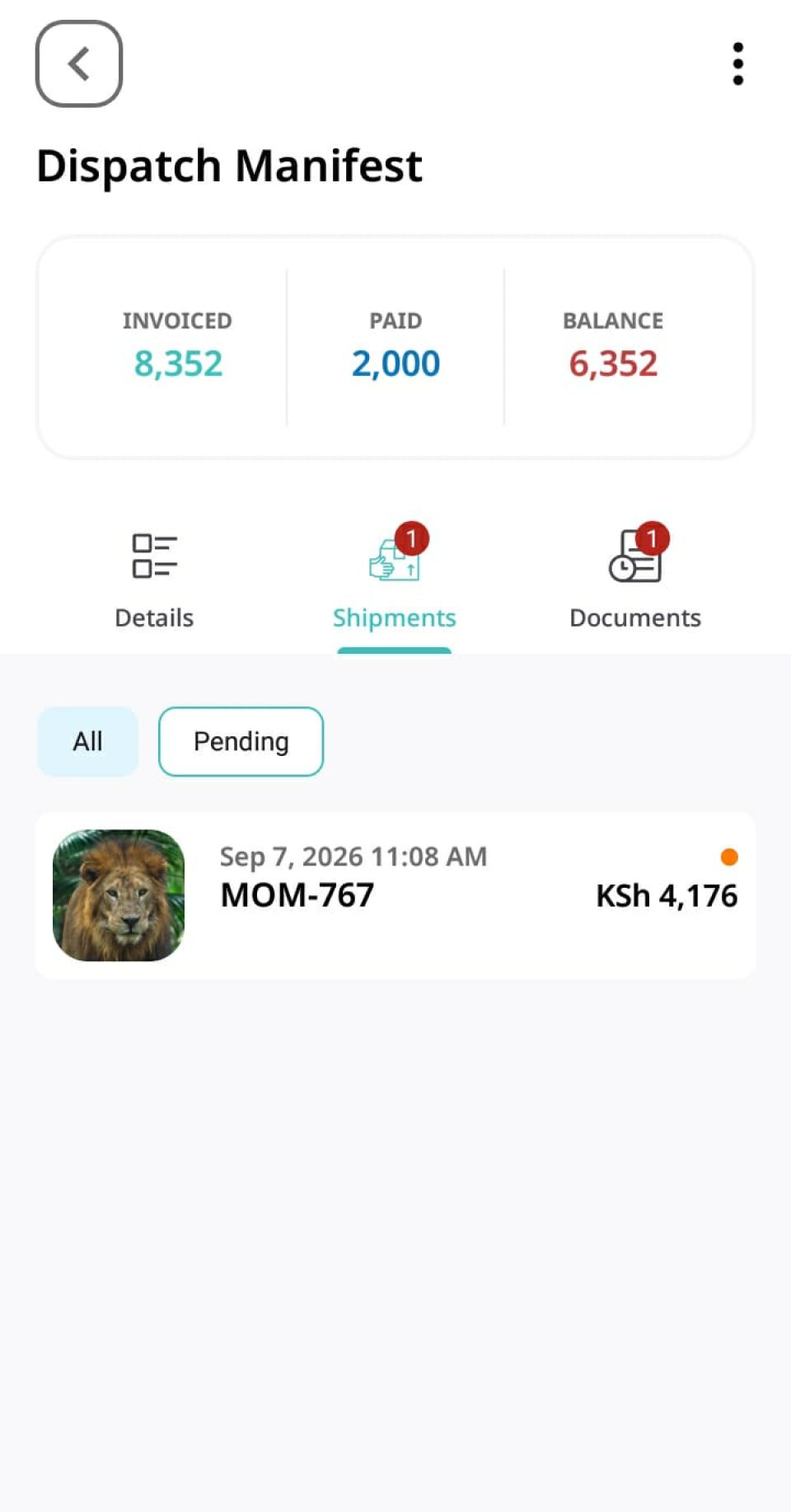
Log in to your CargoPal dashboard and tap Dispatch. This opens the Dispatch Manifest view displaying previously dispatched shipments. Find and select the specific shipment arriving at your station.
Review Dispatch Details 🔍
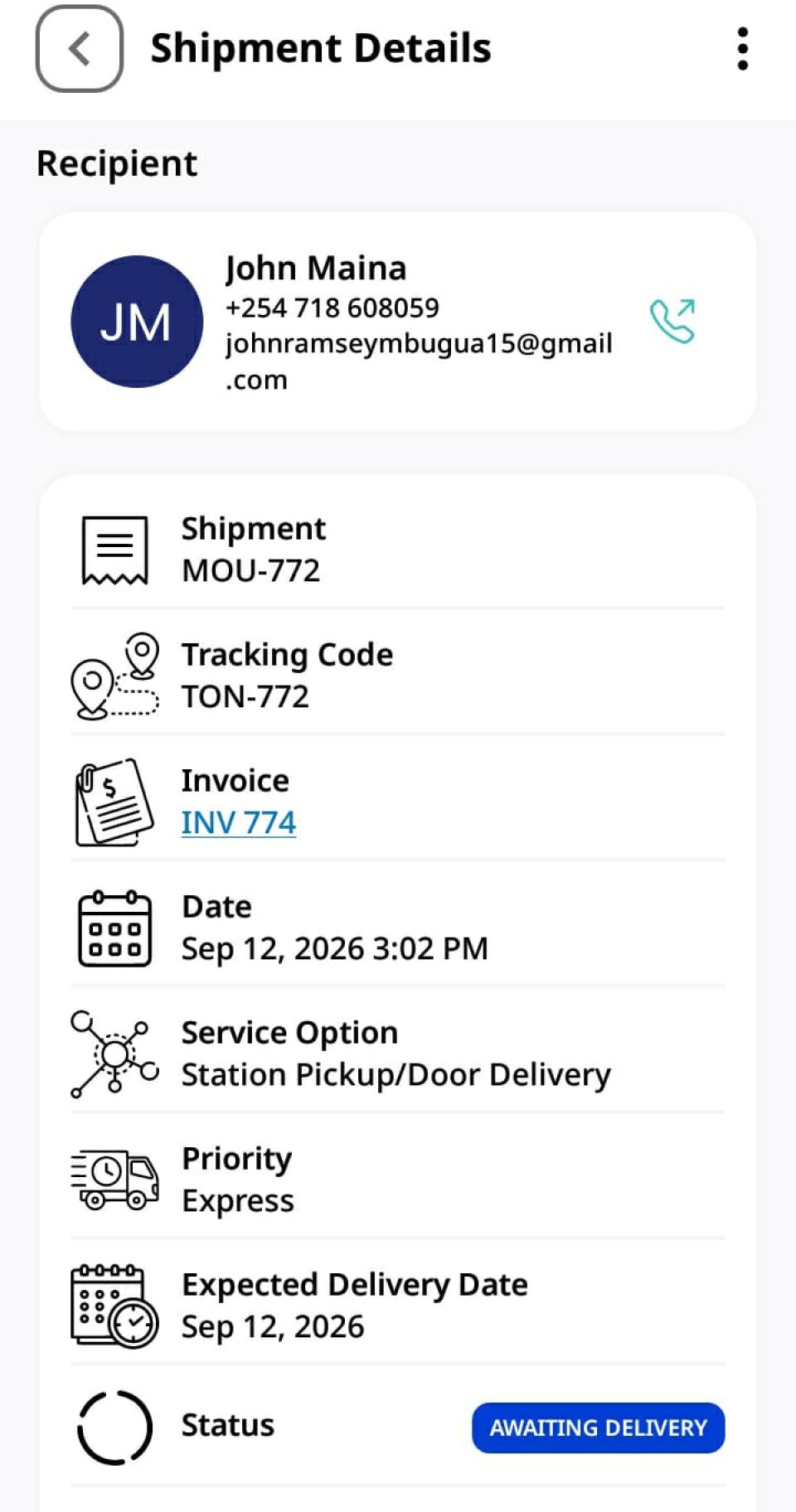
On the shipment details page, review key transit information such as the Manifest ID, Pickup and Drop-off Stations, Vehicle, and the Delivery Agent’s Contact Details.
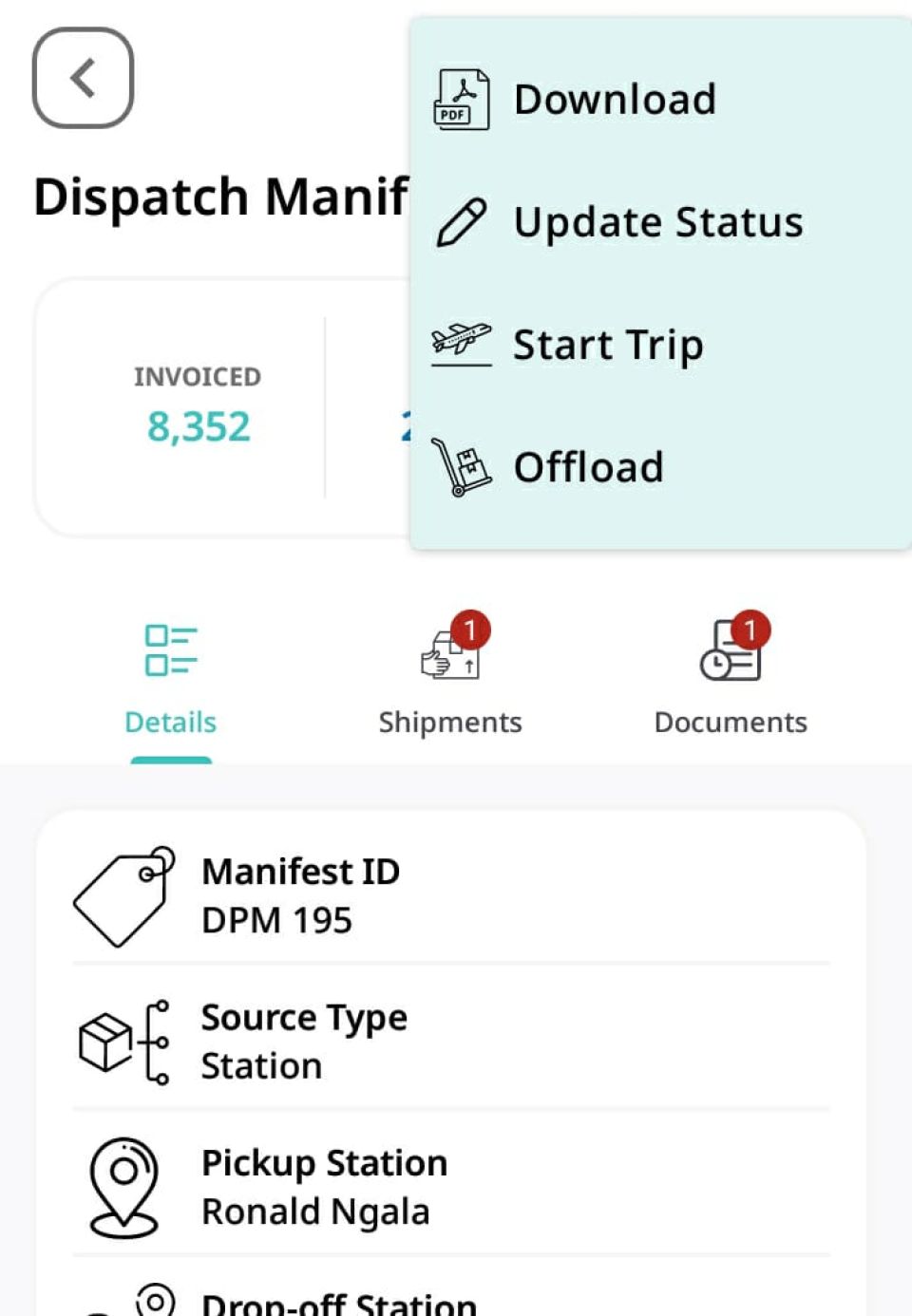
Access the Options Menu ⚙️
Tap the three dots (⋮) in the top right corner. Here you will see three options:
1. Download: Select this if you need a downloadable document of your Dispatch Manifest for manual record-keeping. 📄
2. Start Trip: (This option was already selected by the delivery agent during dispatch). 🚚
3. Offload: Select this option to begin offloading the consignment.
Assign Drop-Off and Storage Details 🏭
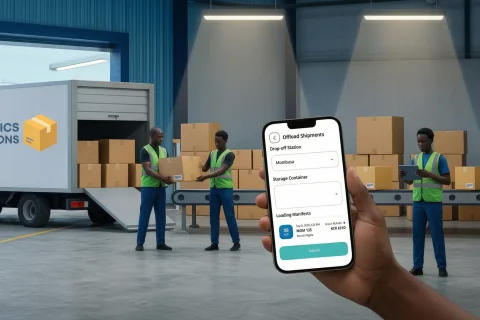
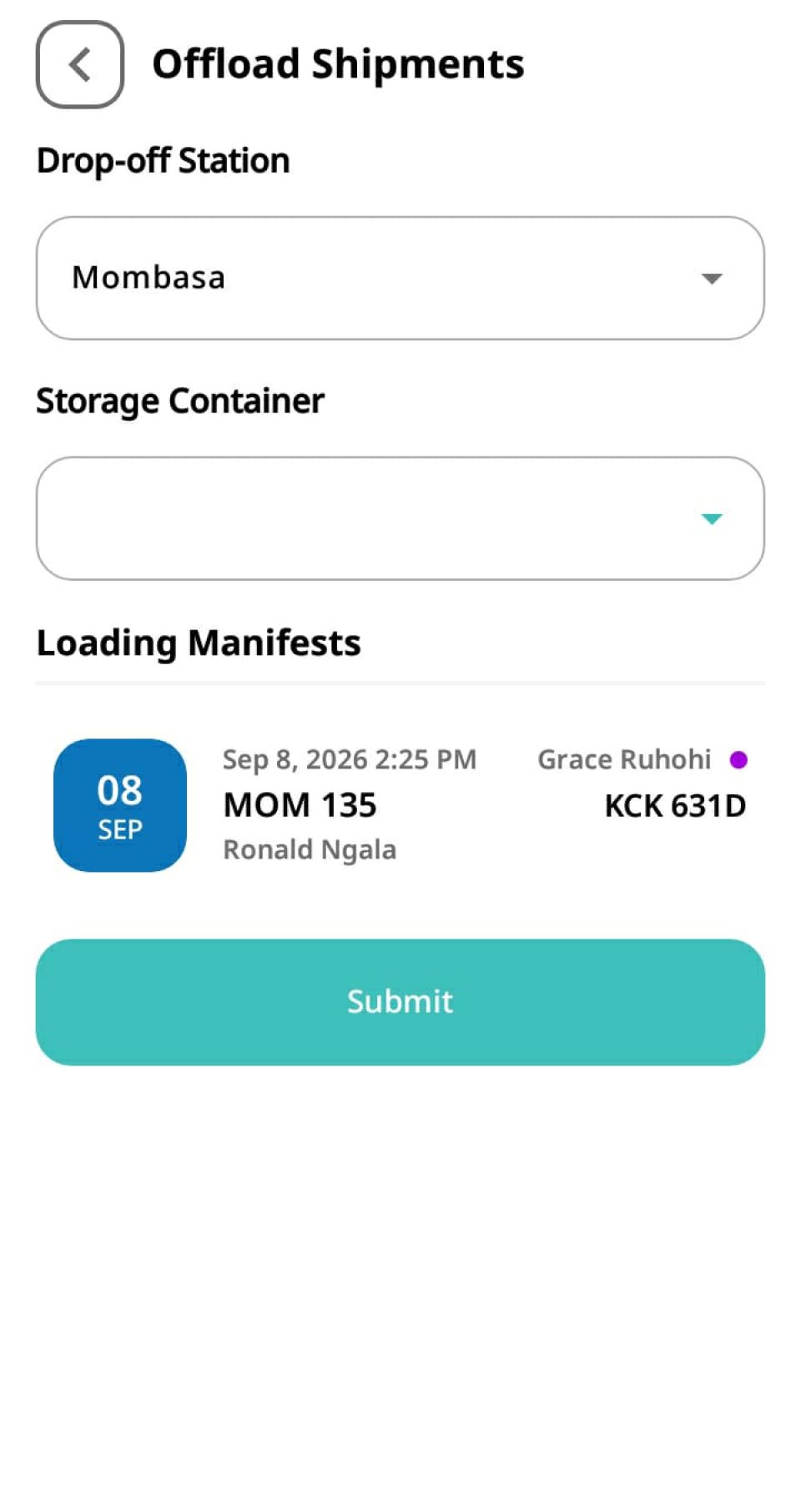
Selecting Offload takes you directly to the Offload Shipments form. Select the correct Drop-off Station and the designated Storage Container (cage or warehouse zone) where the items will be stored.
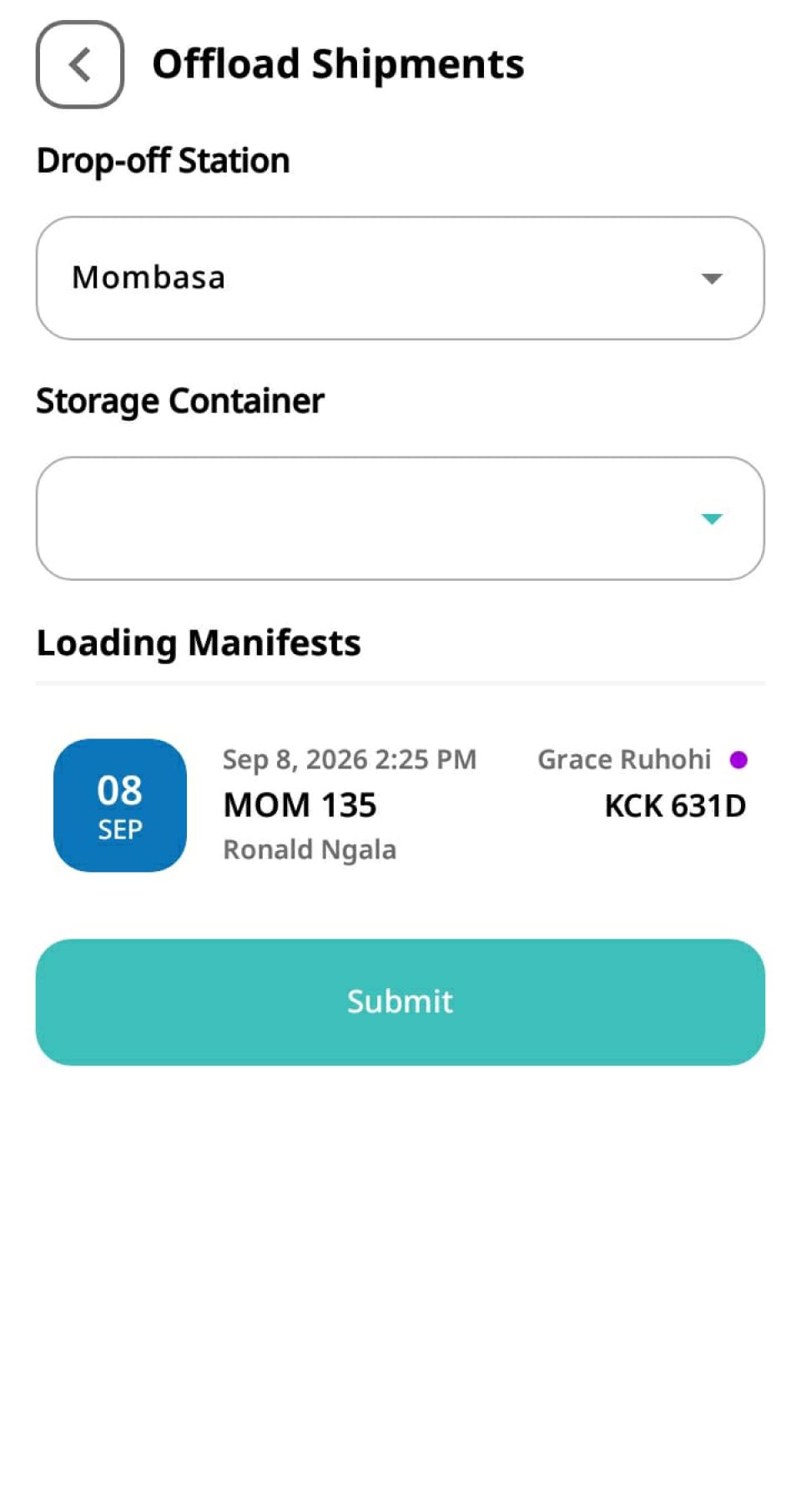
Submit and Confirm Offloading 🚀
Tap Submit. The status of your shipment will instantly update to Awaiting Delivery, signaling that the items are safely received, stored, and ready for final customer pickup or issuing! 🎉