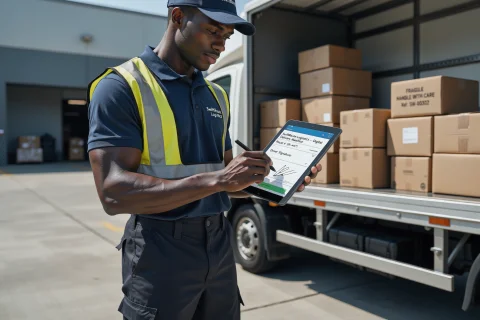
Why Automated Transfers Matter 💡
Efficiency in logistics relies on seamless warehouse handoffs. CargoPal automatically creates a shipment transfer to the designated cage right after booking, ensuring every item is instantly accounted for without extra paperwork.⚡
PART 1: HOW TO CONFIRM A TRANSFER 📝
Log in to your CargoPal dashboard and tap Transfers 📲 from the main menu.
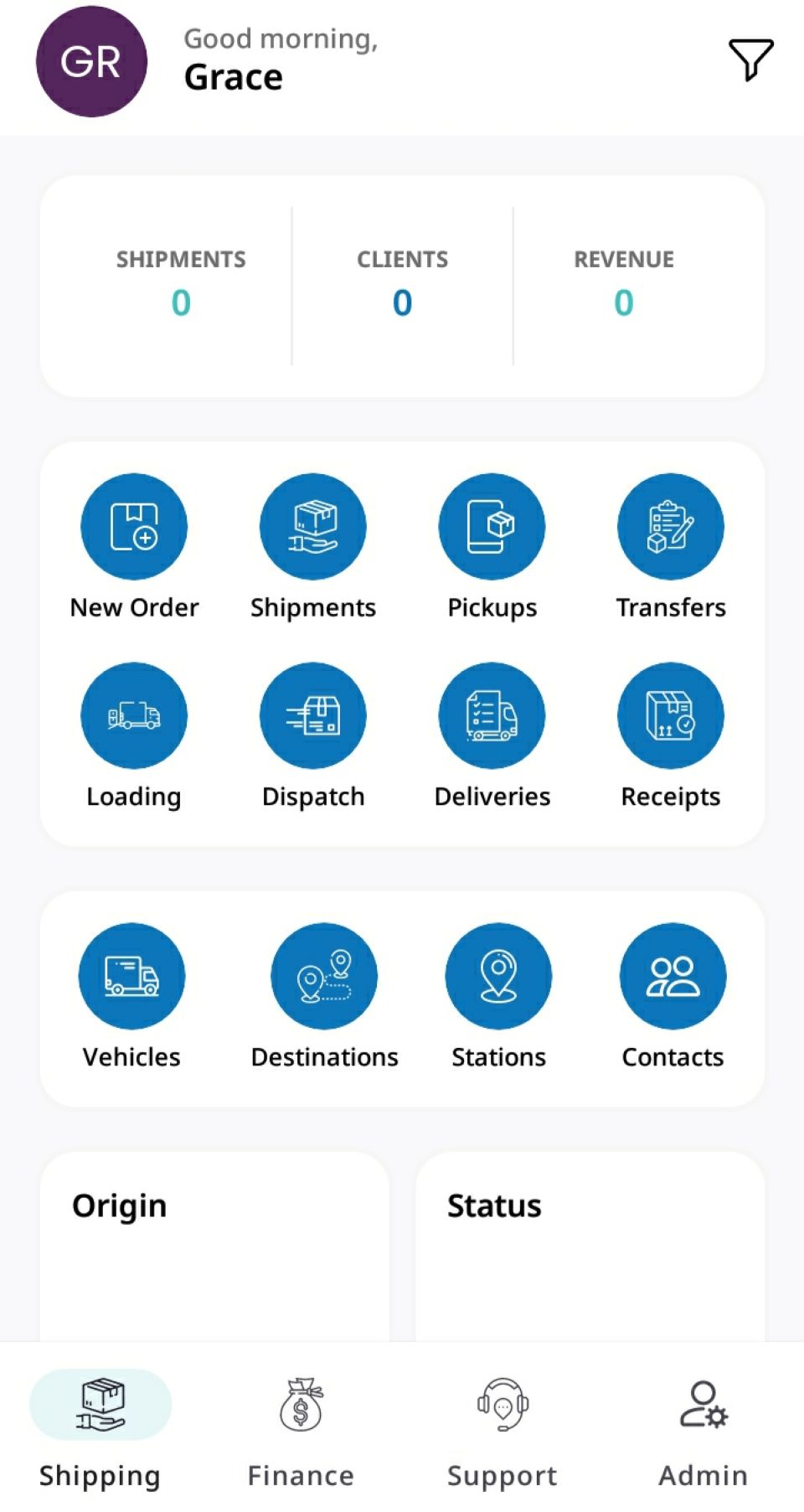
This opens the Shipment Transfers view, displaying all your previous and active transfers. There is a filter that can assist you to view the transfers that are in Draft and Under Review separately.
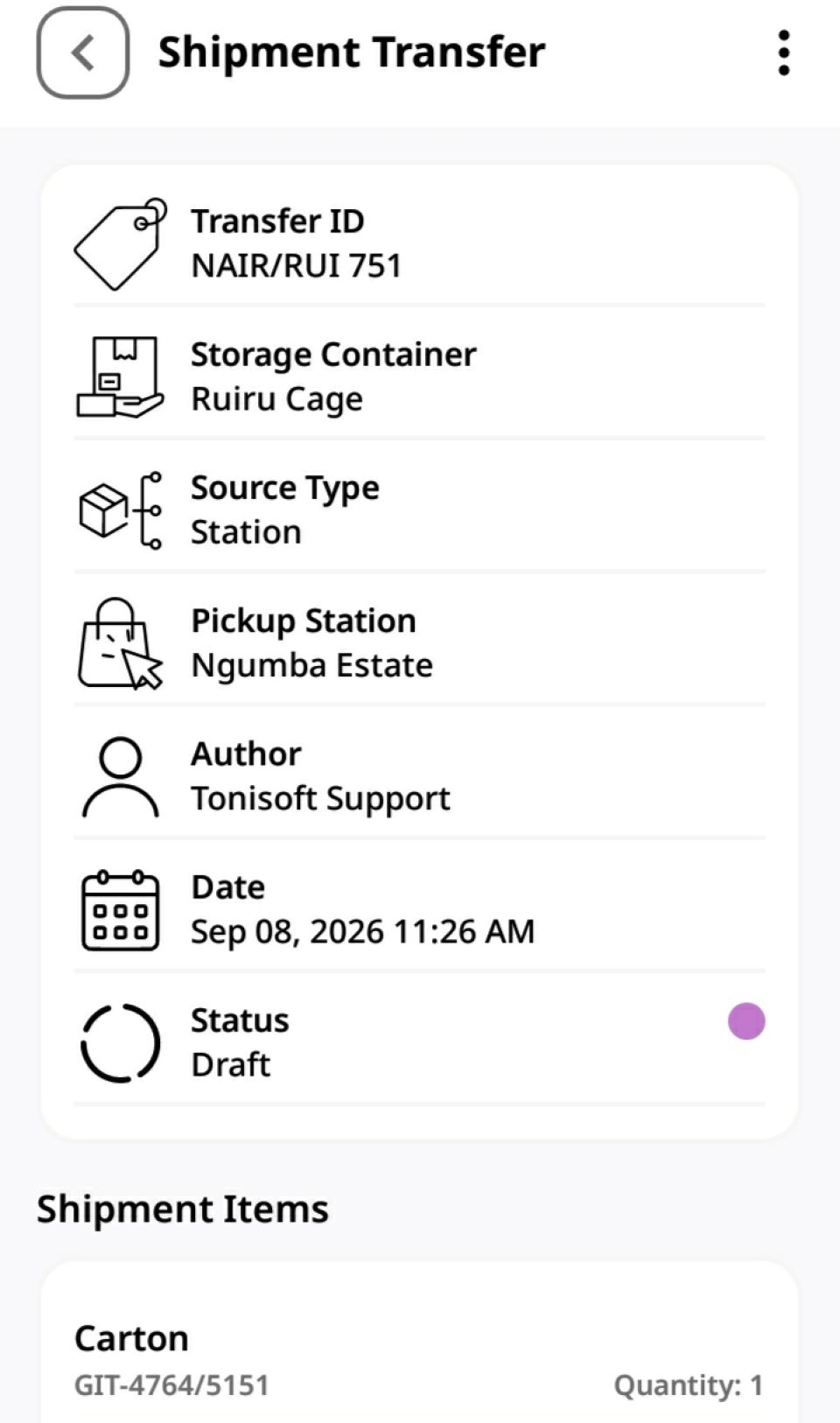
Select Your Transfer 🔍
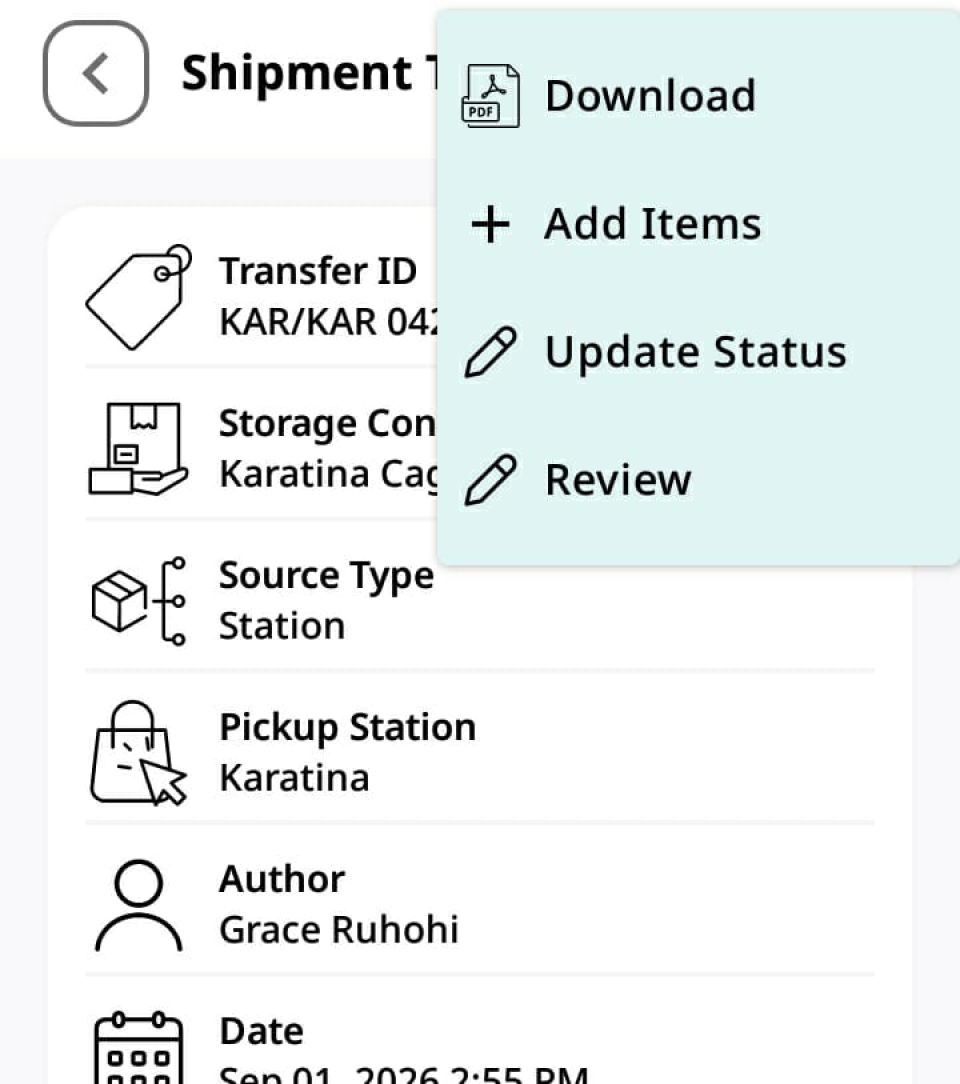
Tap on the specific shipment transfer you want to process. Here, you’ll see complete details including the Transfer ID, Storage Container, Source Type, and Pickup Station. Notice that new transfers start with the initial status set to Draft.
Manage Items in the Transfer ➕
Need to attach additional items? Tap the three dots (⋮) in the upper right corner and choose Add Items. Pick the items you wish to add and hit Submit.
Review and Confirm the Status ⚙️
To move forward, tap the three dots (⋮) again and select Review. From the dropdown menu in the status section, select Under Review ➡️ To confirm and proceed with the transfer.
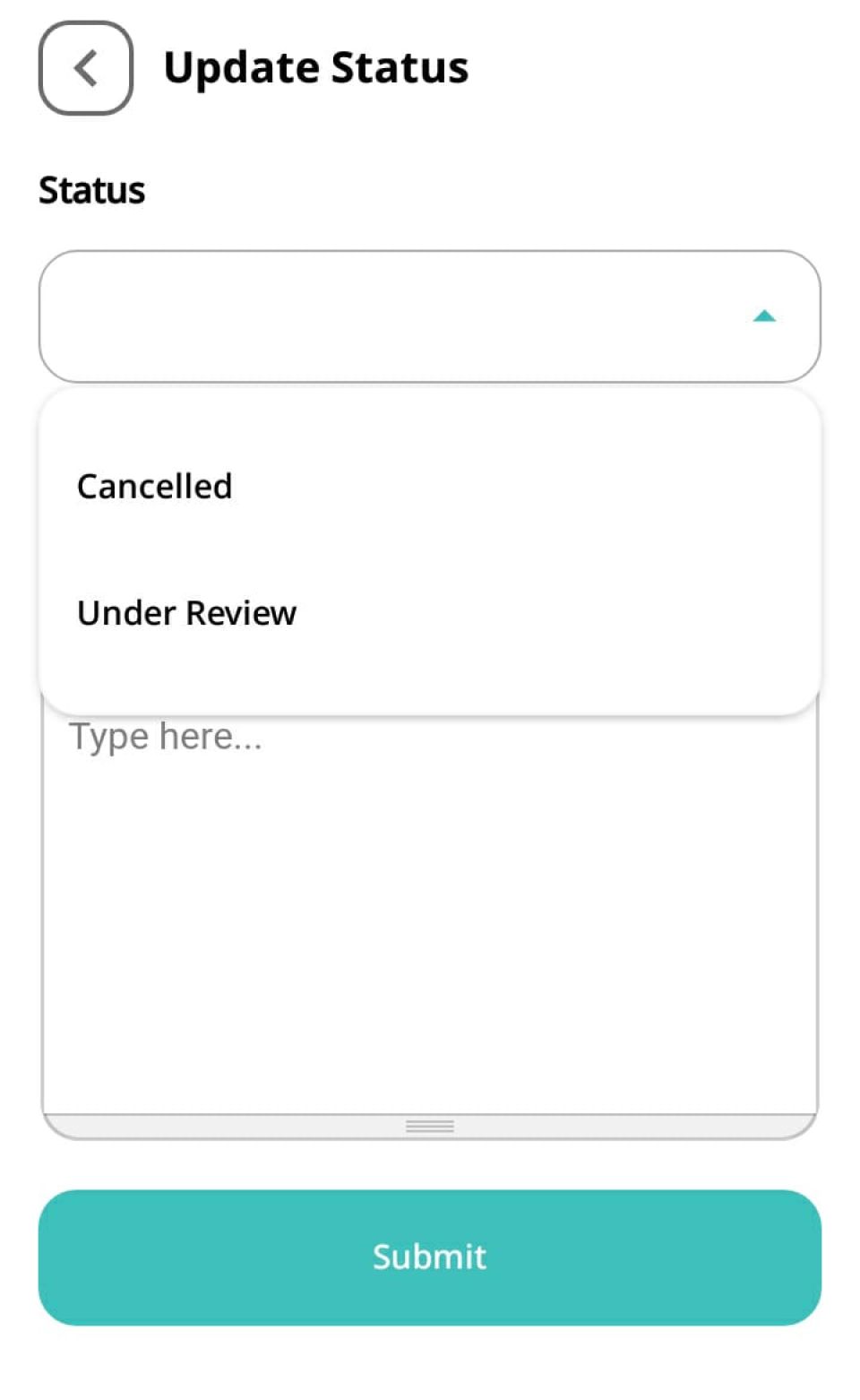
Select Cancelled ❌ To cancel the transfer (be sure to type the cancellation reason in the Comments section).
Once submitted, the shipment status updates to Awaiting Transfer. This signals that your items are verified and ready to be received into the cage or warehouse! 🎉
PART 2: HOW TO RECEIVE A TRANSFER 📥
Once items arrive at the designated cage or warehouse, receiving them into inventory takes just a few quick taps! 👇
Open Pending Transfers 📂
Go to Transfers on your dashboard and select the pending shipment transfer with the status Under Review.
Process the Review 🛠️
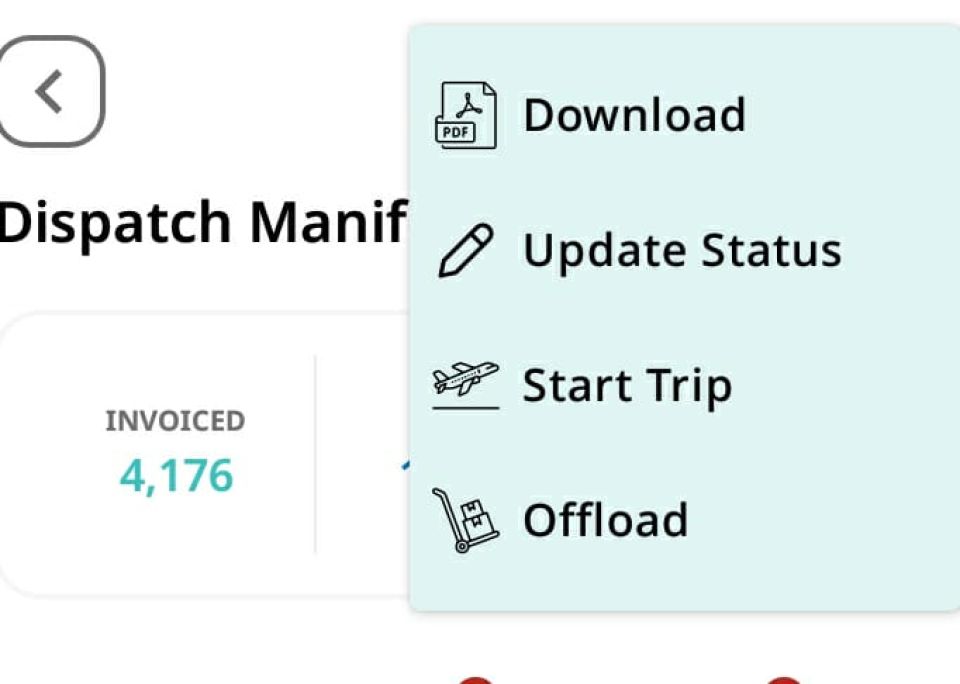
Tap the three dots (⋮) menu icon in the top right corner and tap Review.
Open the Status dropdown and choose Received. (If there's an issue with the shipment, select Rejected and enter your reason in the Comments box).
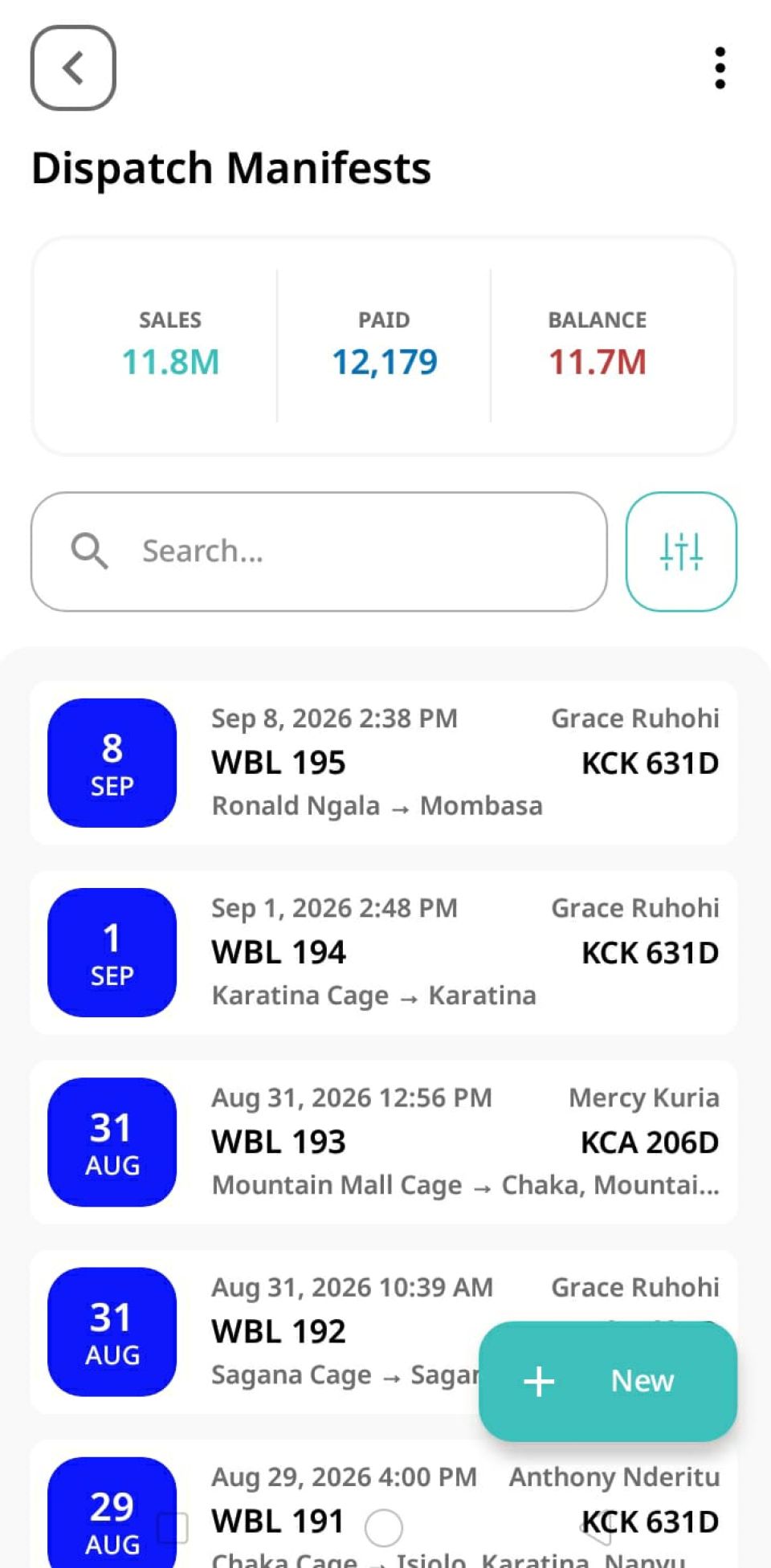
Update Status to Received ✅
Click Submit. The transfer status instantly changes to Received. 🔒
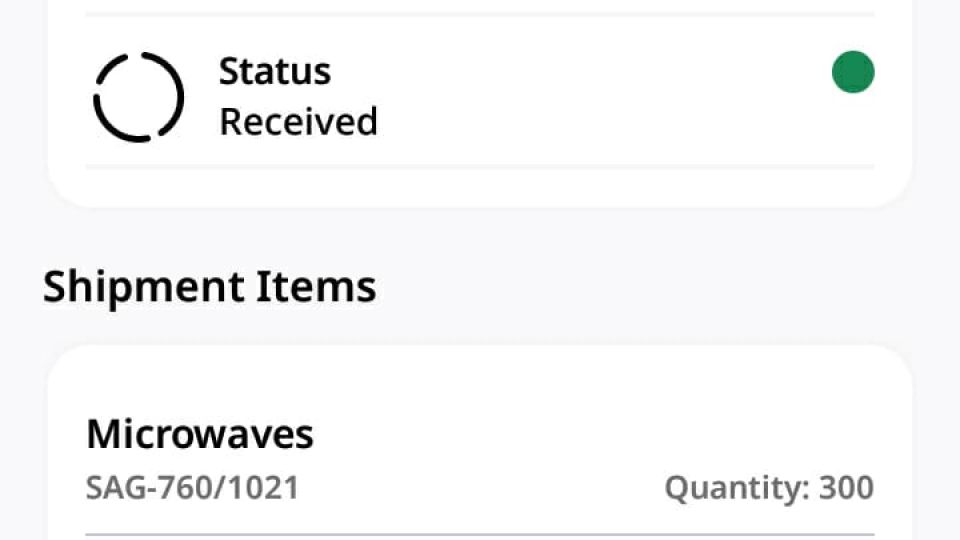
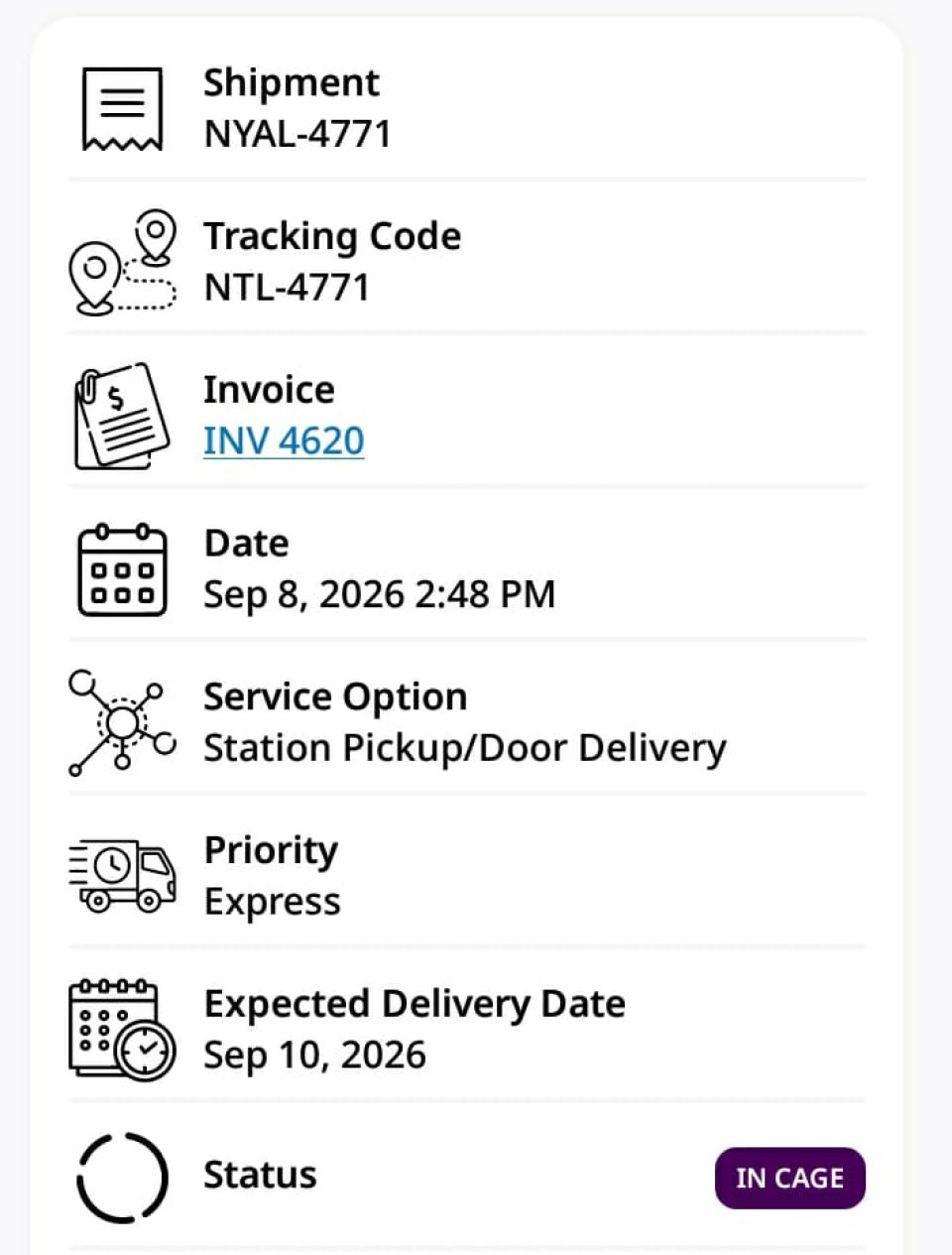
The shipment status updates to In Cage. Your items are now safely stored and ready for loading! 📦