Why Digital Signature and Dispatch Tracking Matter 🔒
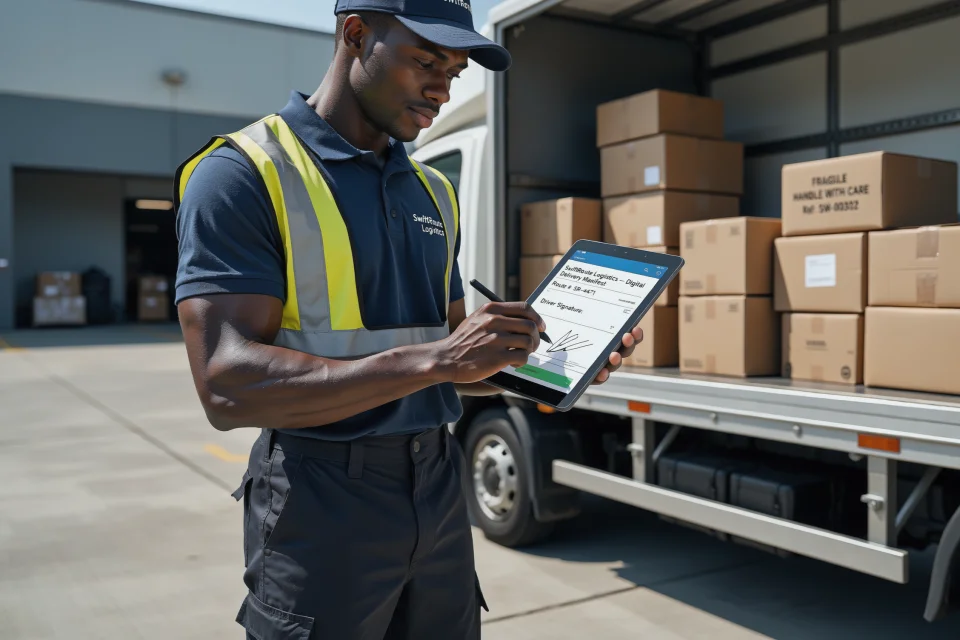
In logistics, clear responsibility handoffs protect both your team and your cargo. By collecting digital signatures and linking driver accounts directly to loading manifests, CargoPal provides complete end-to-end visibility the moment a trip begins. ⚡
How to Dispatch a Shipment Step-by-Step 📝
Log in to your CargoPal dashboard and select Dispatch.
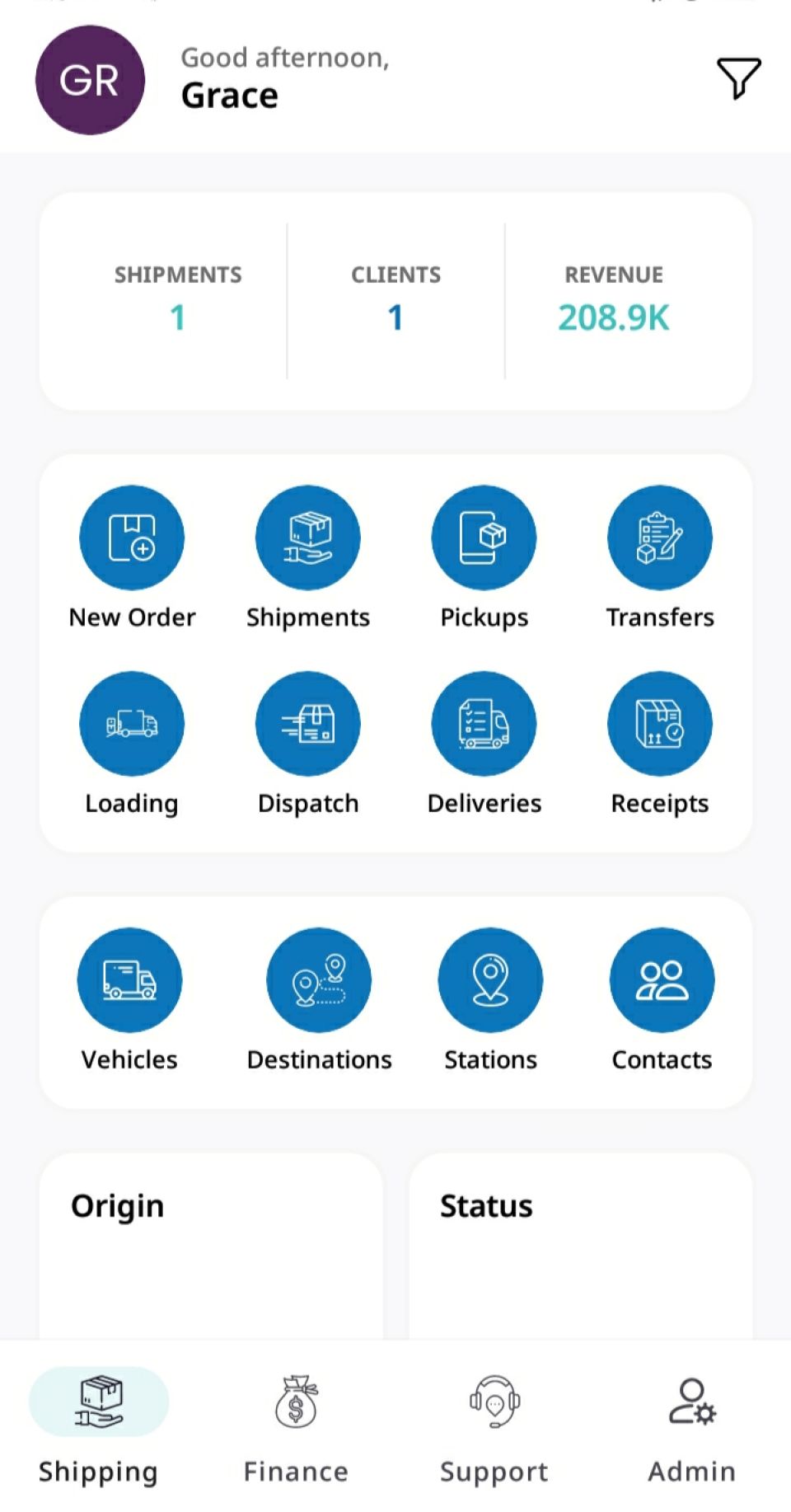
This takes you to the Dispatch Manifests view, where you can view all previous dispatch logs.
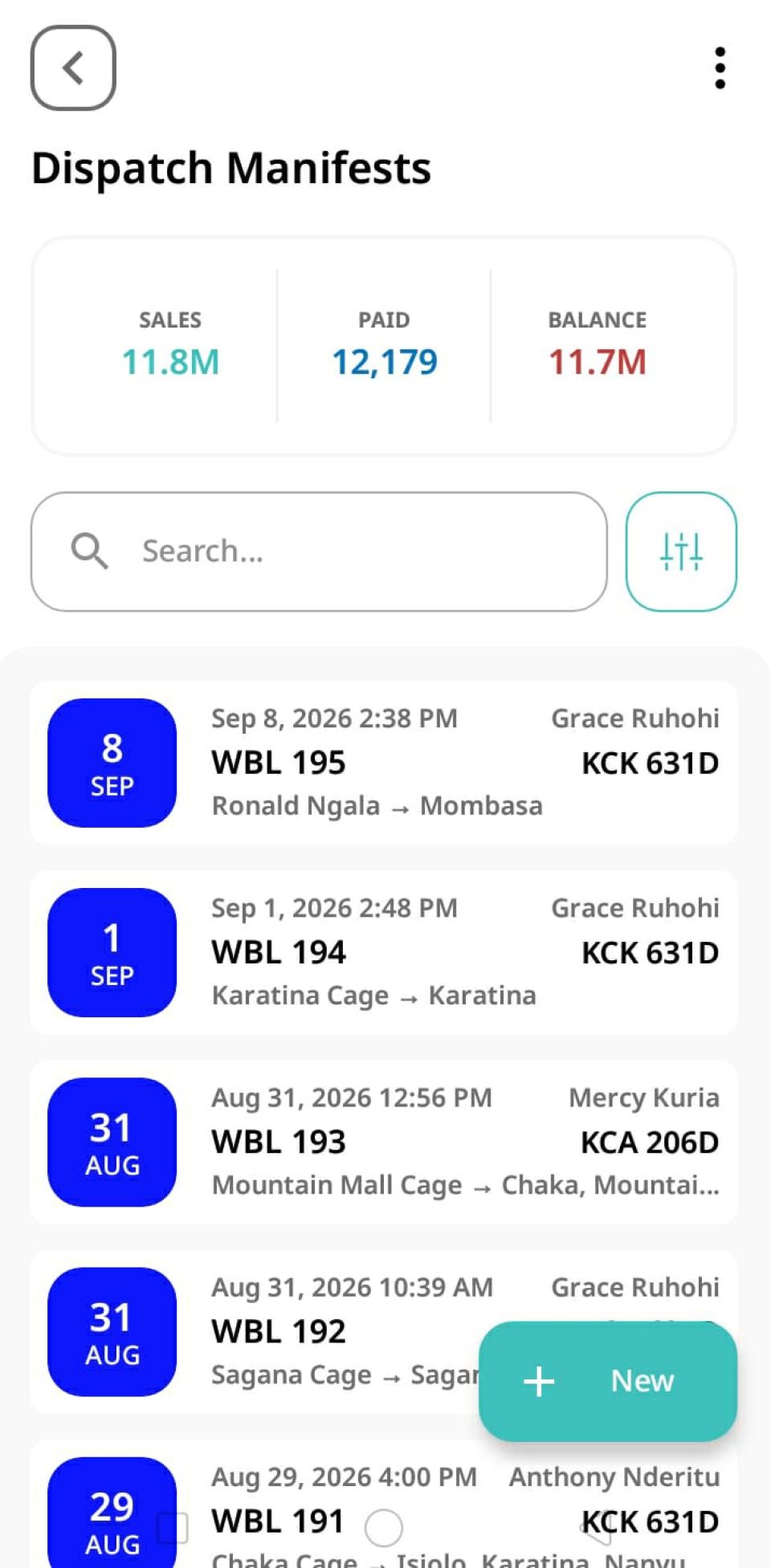
To begin a new dispatch, tap the New (+) button in the bottom right corner of your screen.
Select Source Type and Pickup Station 📍
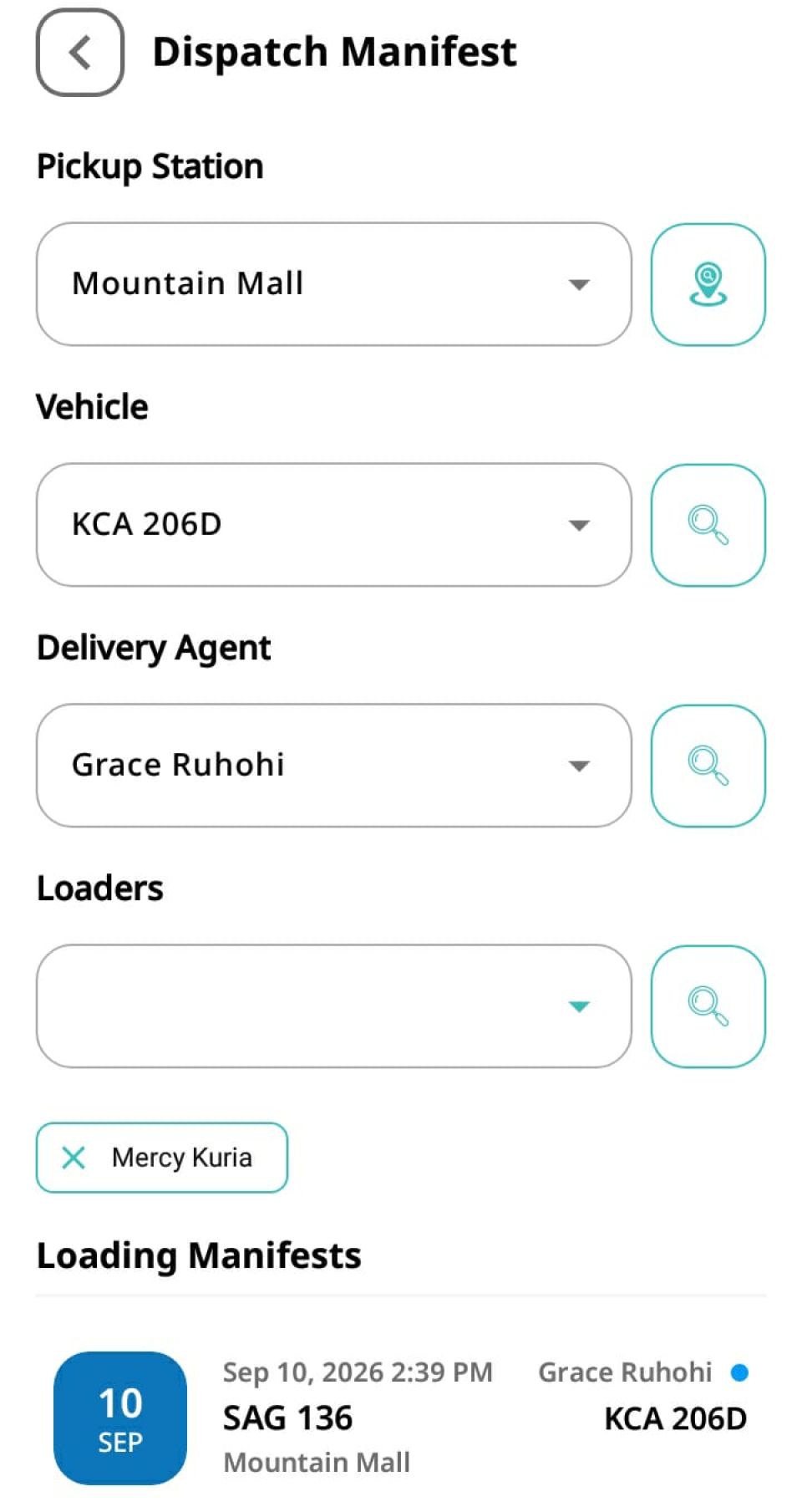
Source Type: Choose Storage Container(if transferred to a cage/warehouse) or Station (if dispatched directly from the station).
Pickup Station: Select or search for the pickup station previously used during the loading phase. (Tip: Tap the Search Icon on the right for quick lookup!)
Select the specific vehicle previously loaded with the shipment. Once chosen, CargoPal will automatically populate the relevant loading manifest in a list below!
Assign Delivery Agents and Crew 👥
Select your primary Delivery Agent (such as a driver or rider). If additional team members are assisting—like loaders—you can assign them here as well.
Capture Signature & Submit ✍️
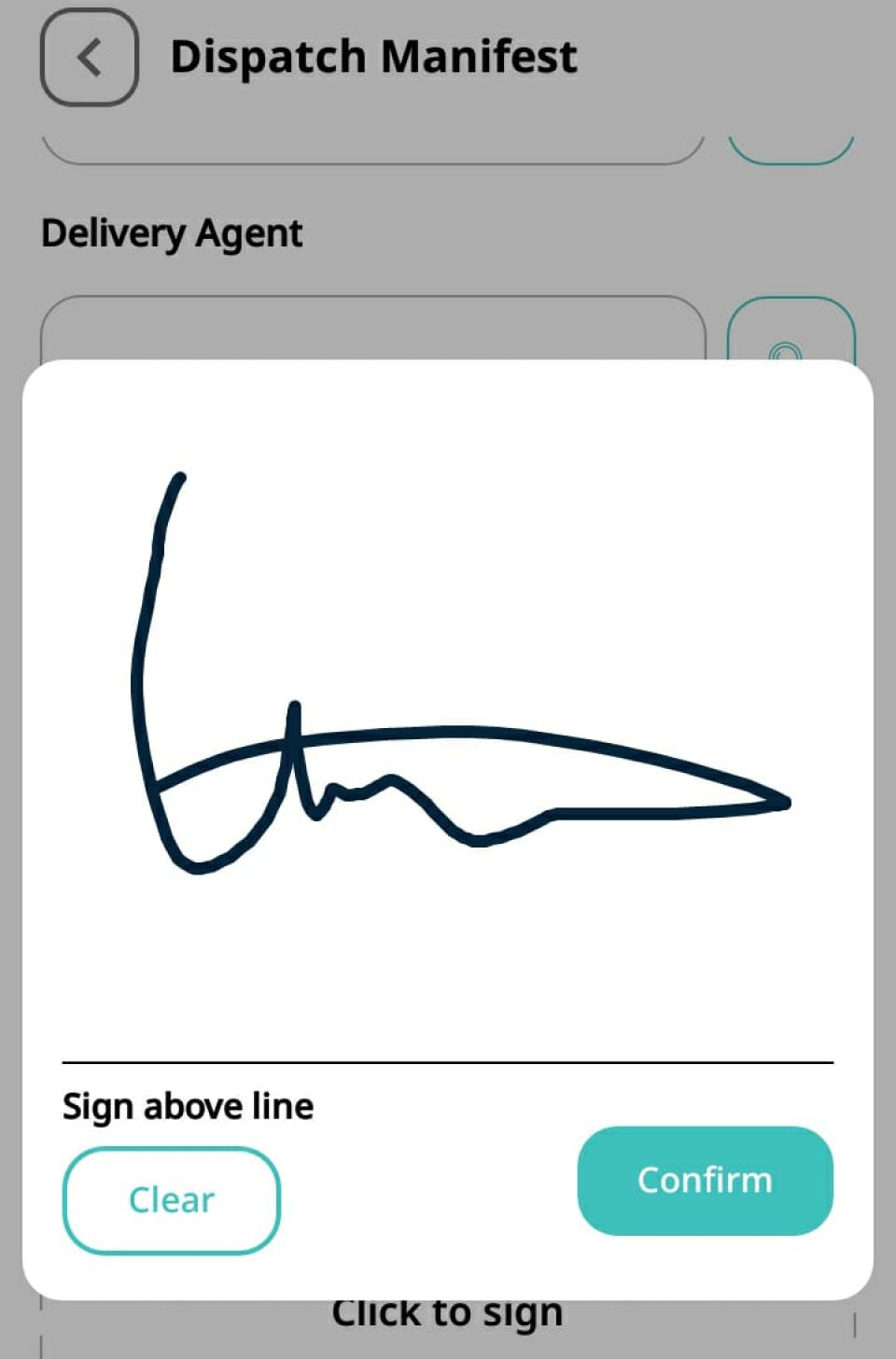
Have the designated delivery agent sign directly on the screen at the bottom of the form to acknowledge official responsibility for the consignment. Click Submit to finalize the dispatch!
After completing the process, a dispatch manifest is created.
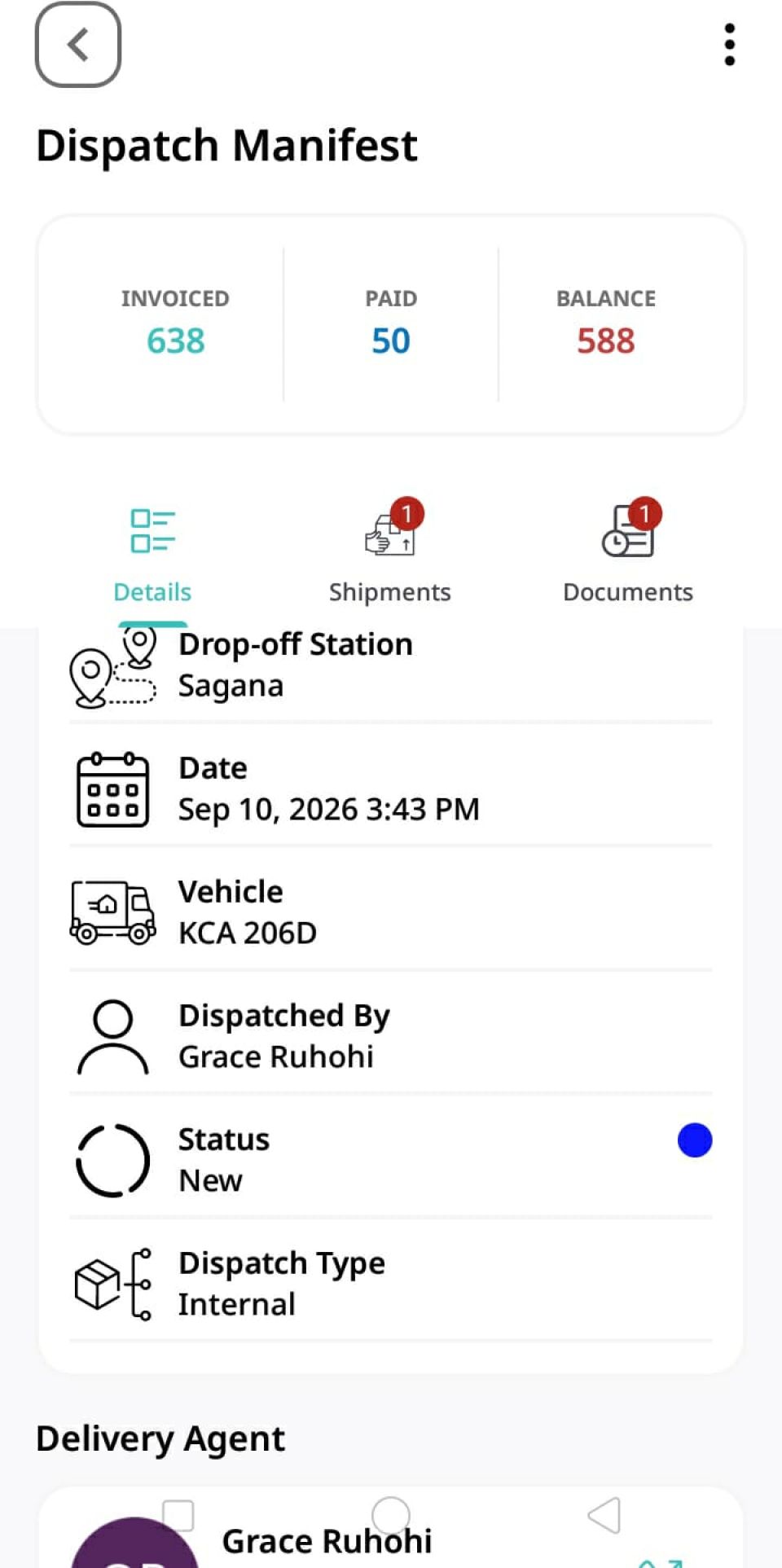
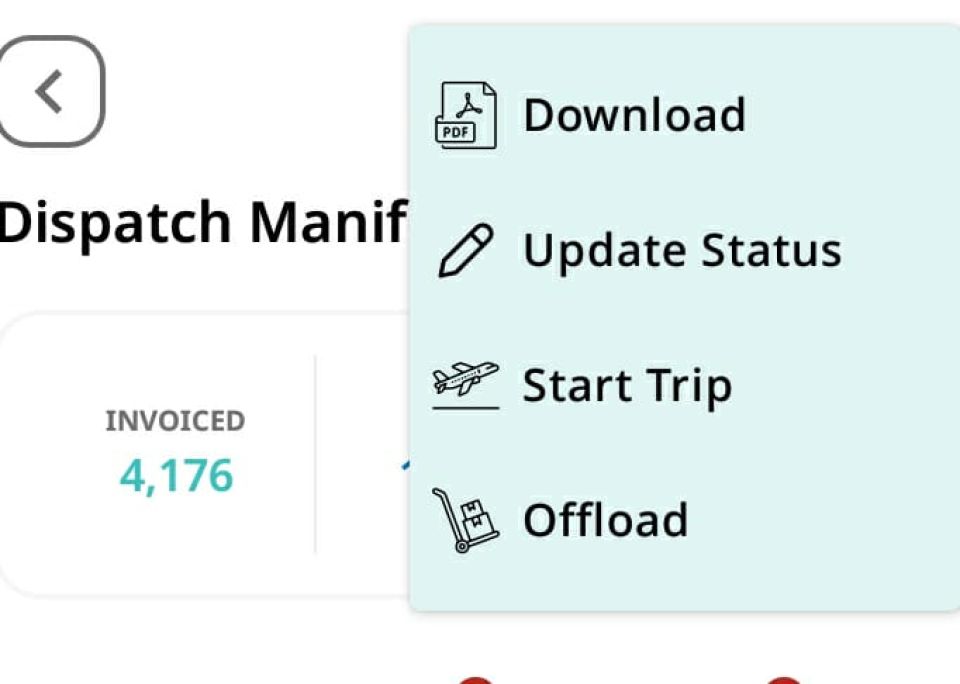
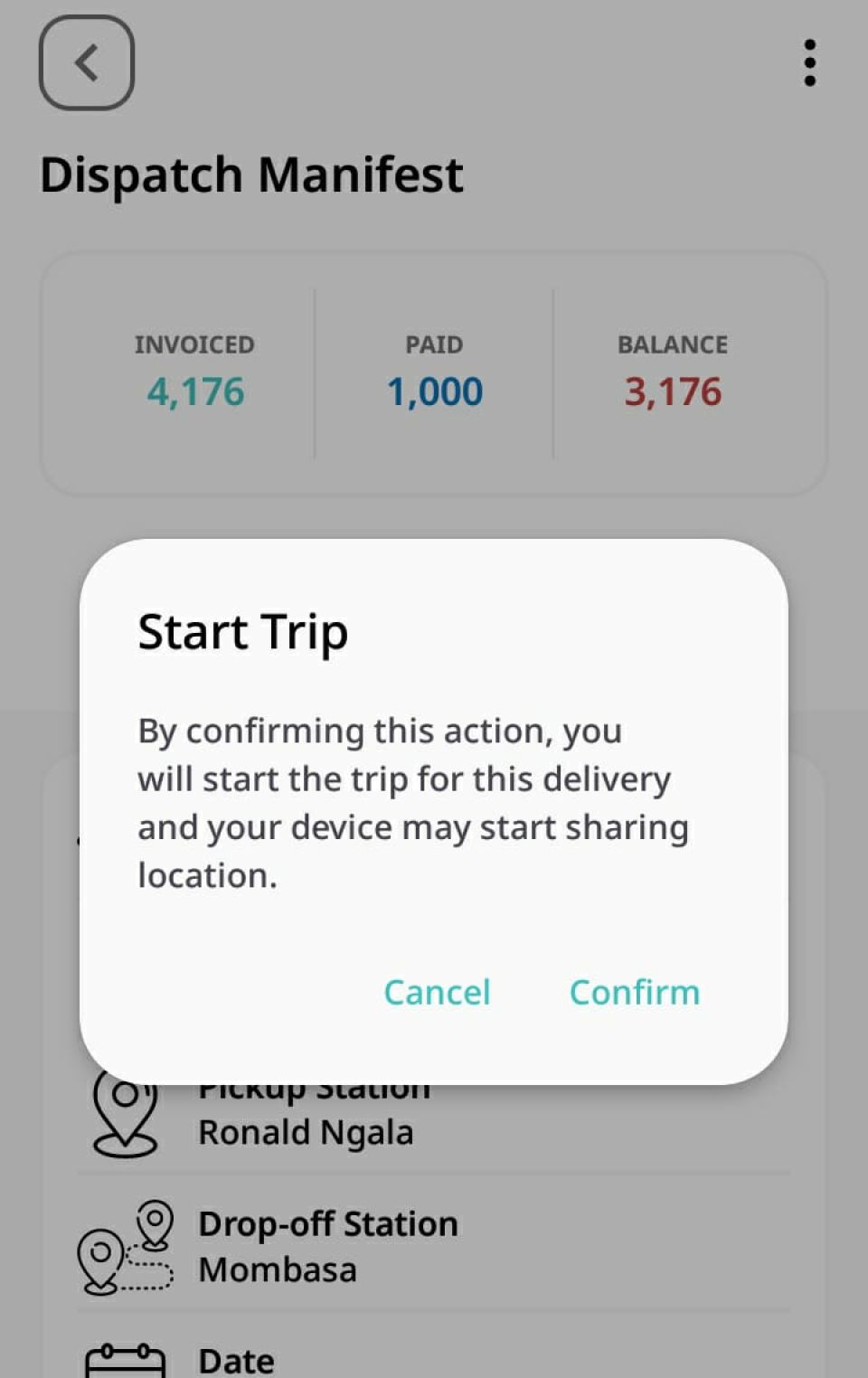
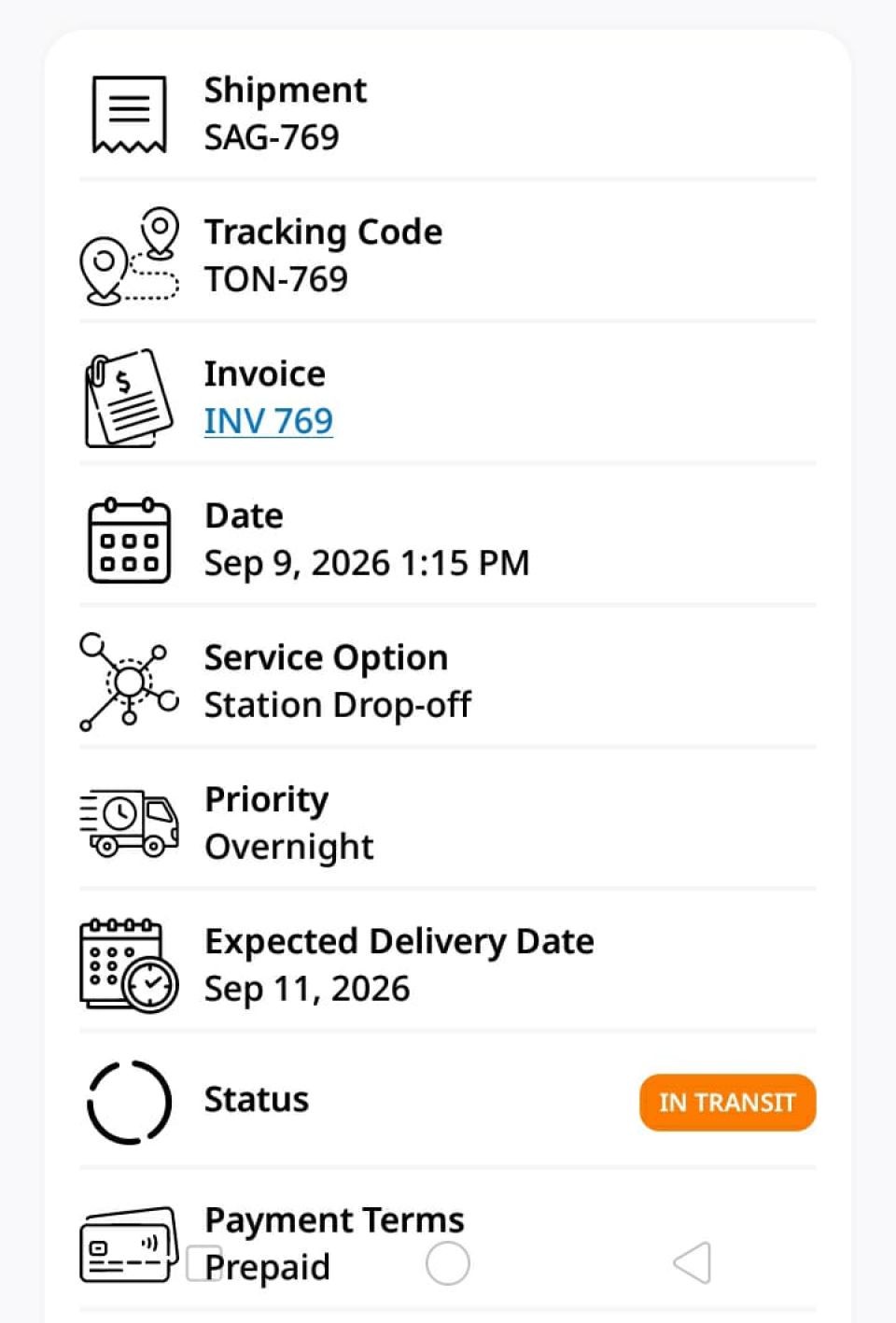
The assigned Delivery Agent selects Start Trip on their mobile device. The shipment status will immediately update to In Transit, allowing live tracking every step of the way! 🎉
So that is how you successfully Dispatch a shipment on the CargoPal Mobile App!