Log in to your CargoPal dashboard and select Deliveries. This opens the Delivery Manifests view, displaying all previous local delivery assignments.
Start a New Delivery Manifest ➕
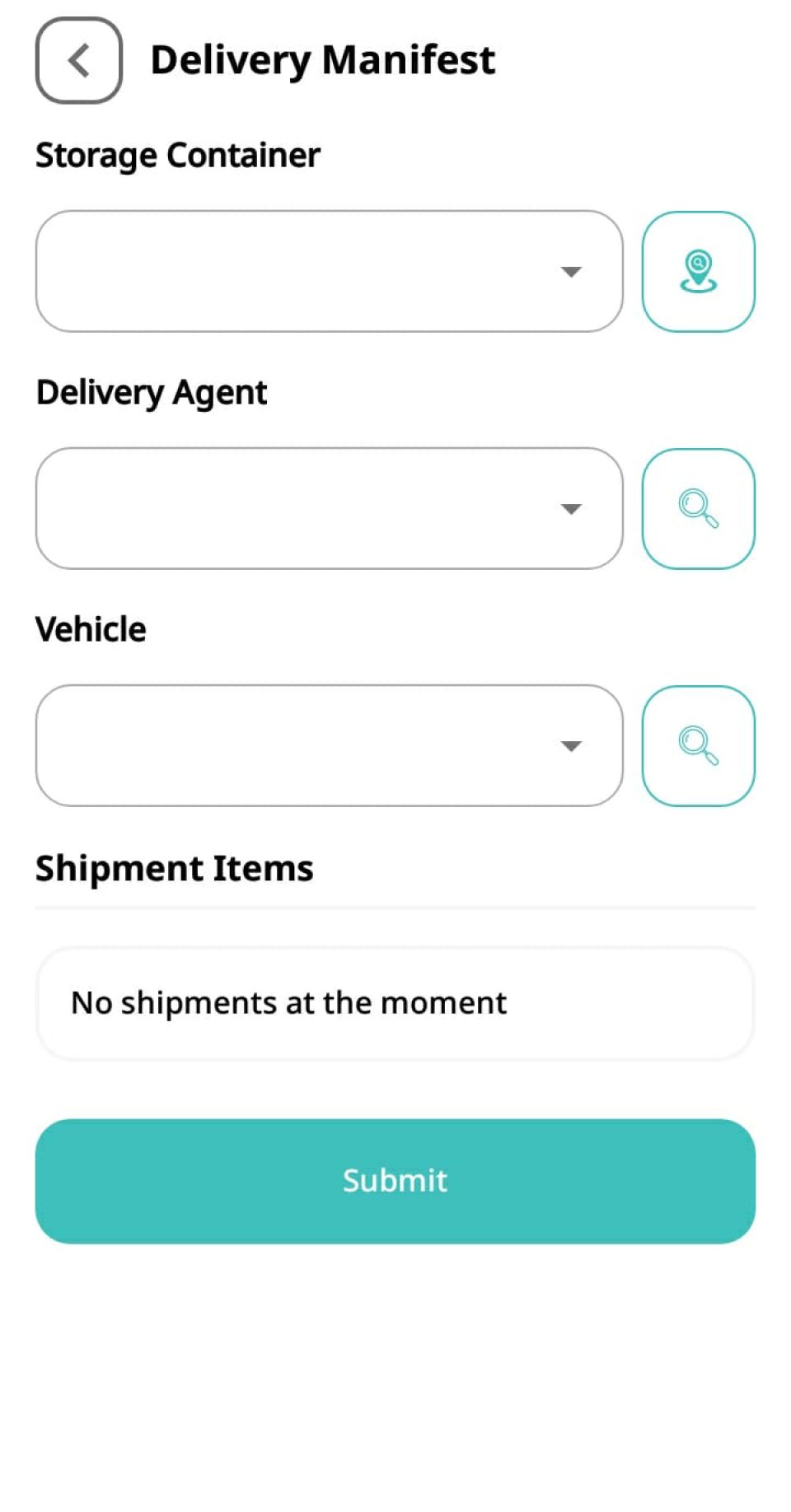
Tap the New (+) button in the bottom right corner of your screen to open the Delivery Manifest form.
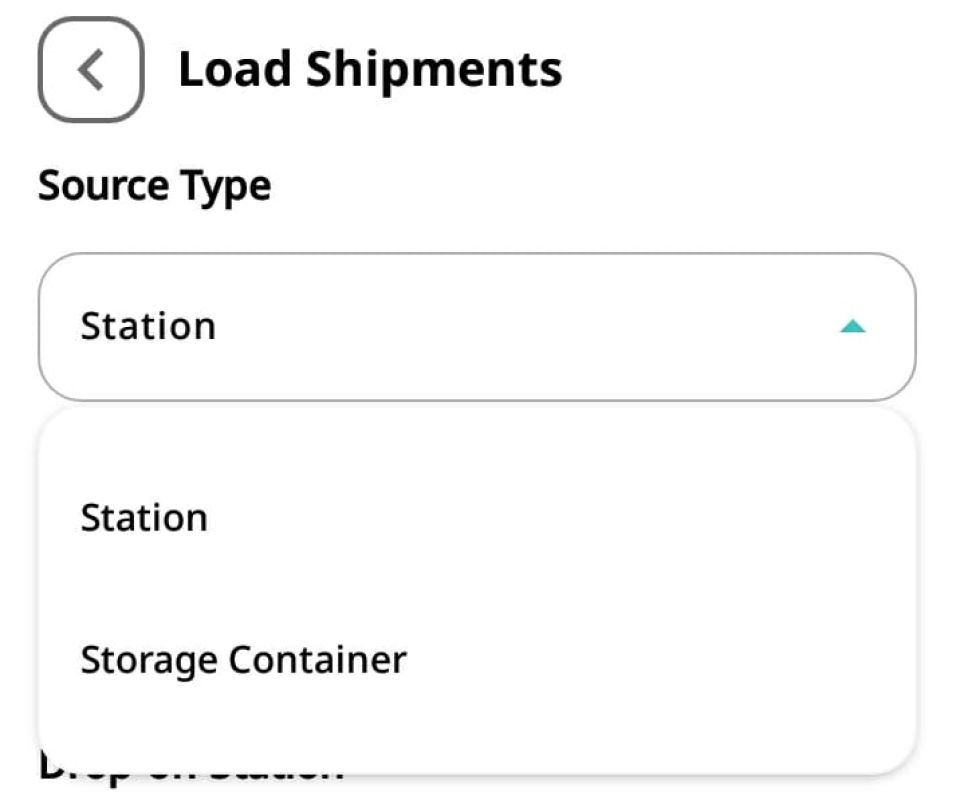
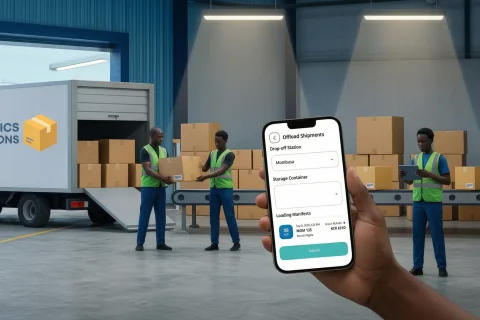
Select Your Storage Container 🏭
Select your Storage Container from the dropdown menu.
(💡 Pro Tip: Tap the Location Icon next to the dropdown field to easily search and locate your storage container!)
Assign Delivery Agent and Vehicle 🛵
Delivery Agent: Choose the specific driver, rider, or agent responsible for delivering the packages directly to the recipient.
Delivery Vehicle: Select the delivery vehicle (motorcycle, van, or truck) assigned to the trip.
Select Items and Submit ✅
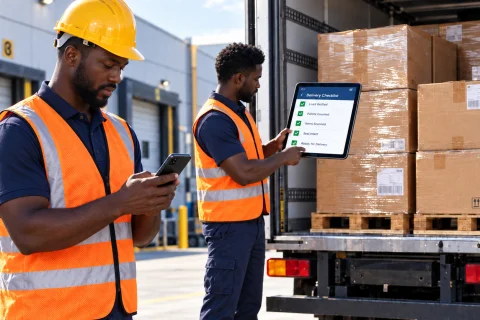
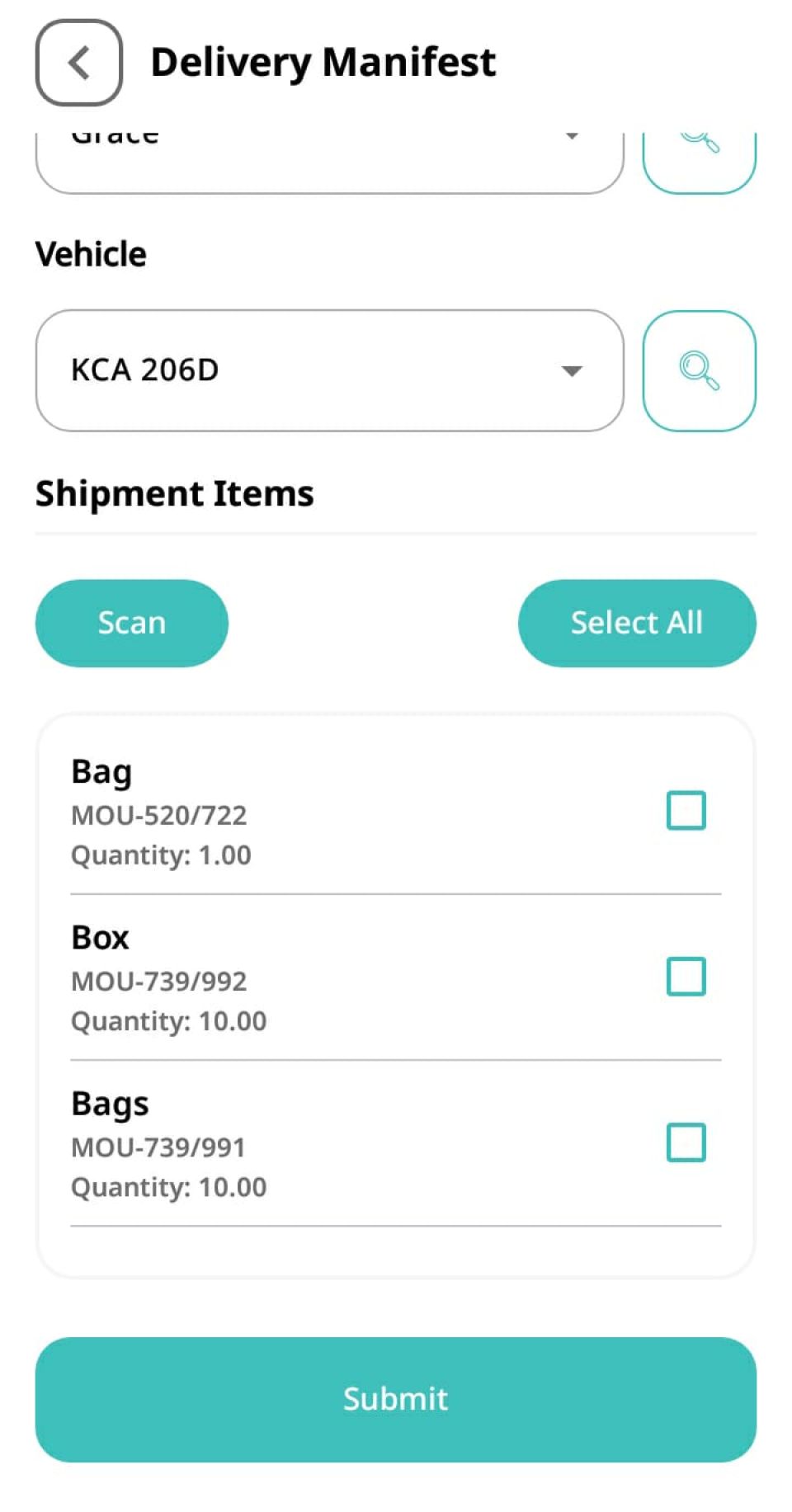
Once your container, agent, and vehicle are selected, CargoPal automatically displays a list of matching shipment items below. Select the relevant packages for this trip and tap Submit.
Track Status Updates 🚀
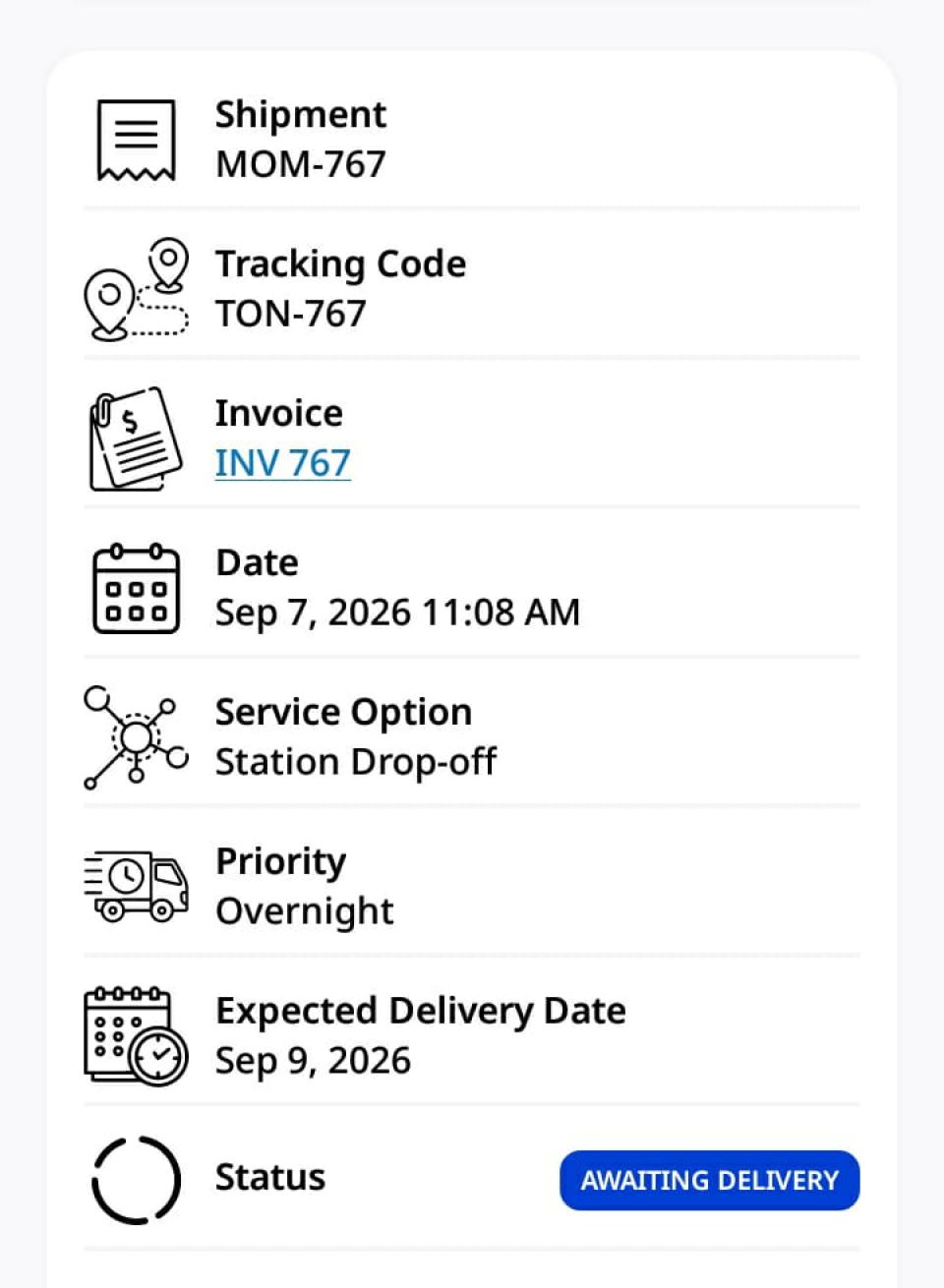
Upon submission, the status of all selected shipments updates to Awaiting Delivery. Your delivery agent is now ready to head out and bring packages directly to your customers! 🎉