
Effortless parcel tracking begins with an organized booking process🚚. The CargoPal mobile app📲 simplifies dispatch operations by walking you through billing setups, client management, and real-time fee calculations💡.
Here is the complete step-by-step workflow to create, submit, and review a shipment in CargoPal👇.
STEP ONE: SET UP ORDER PREFERENCES
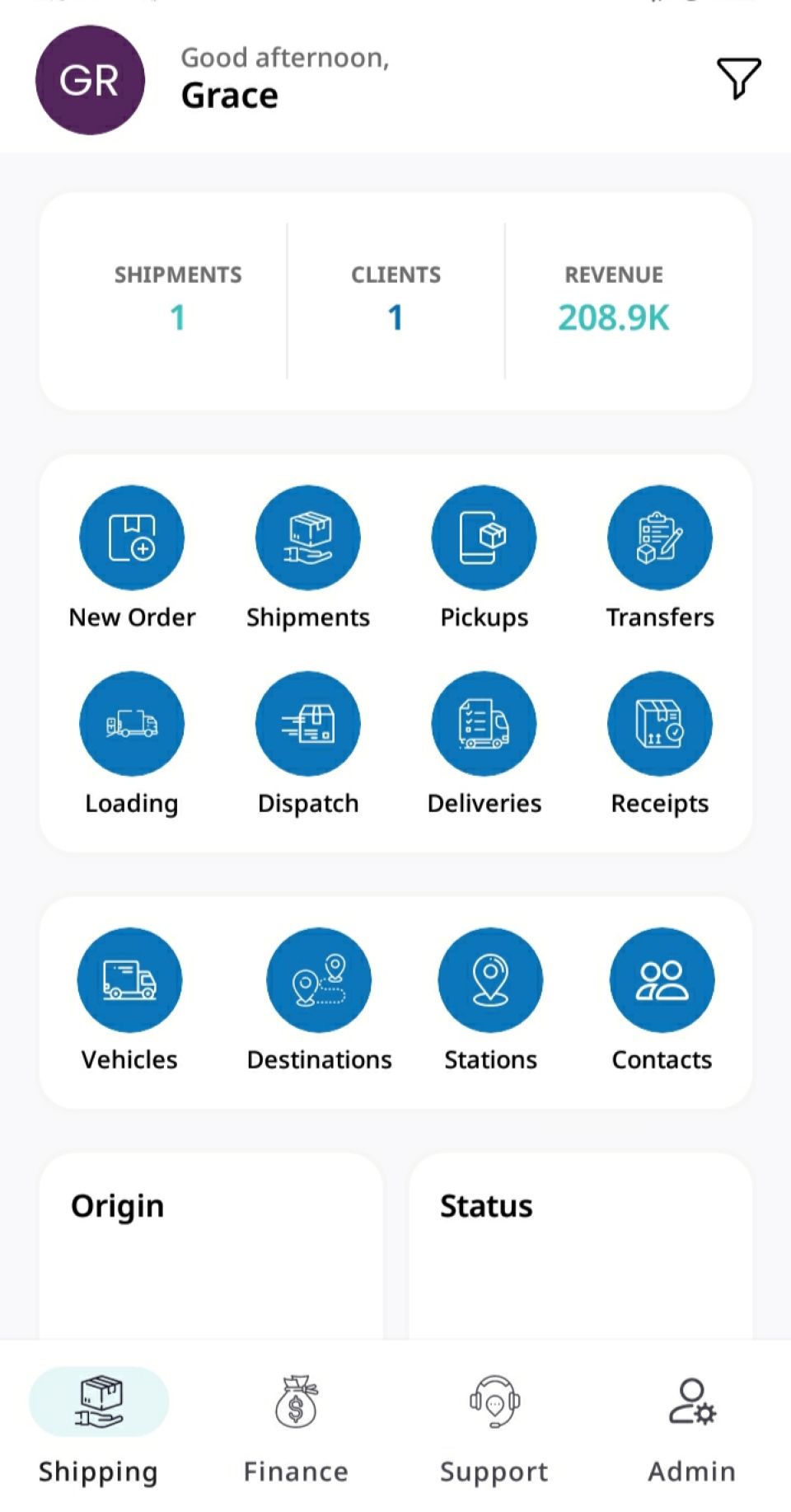
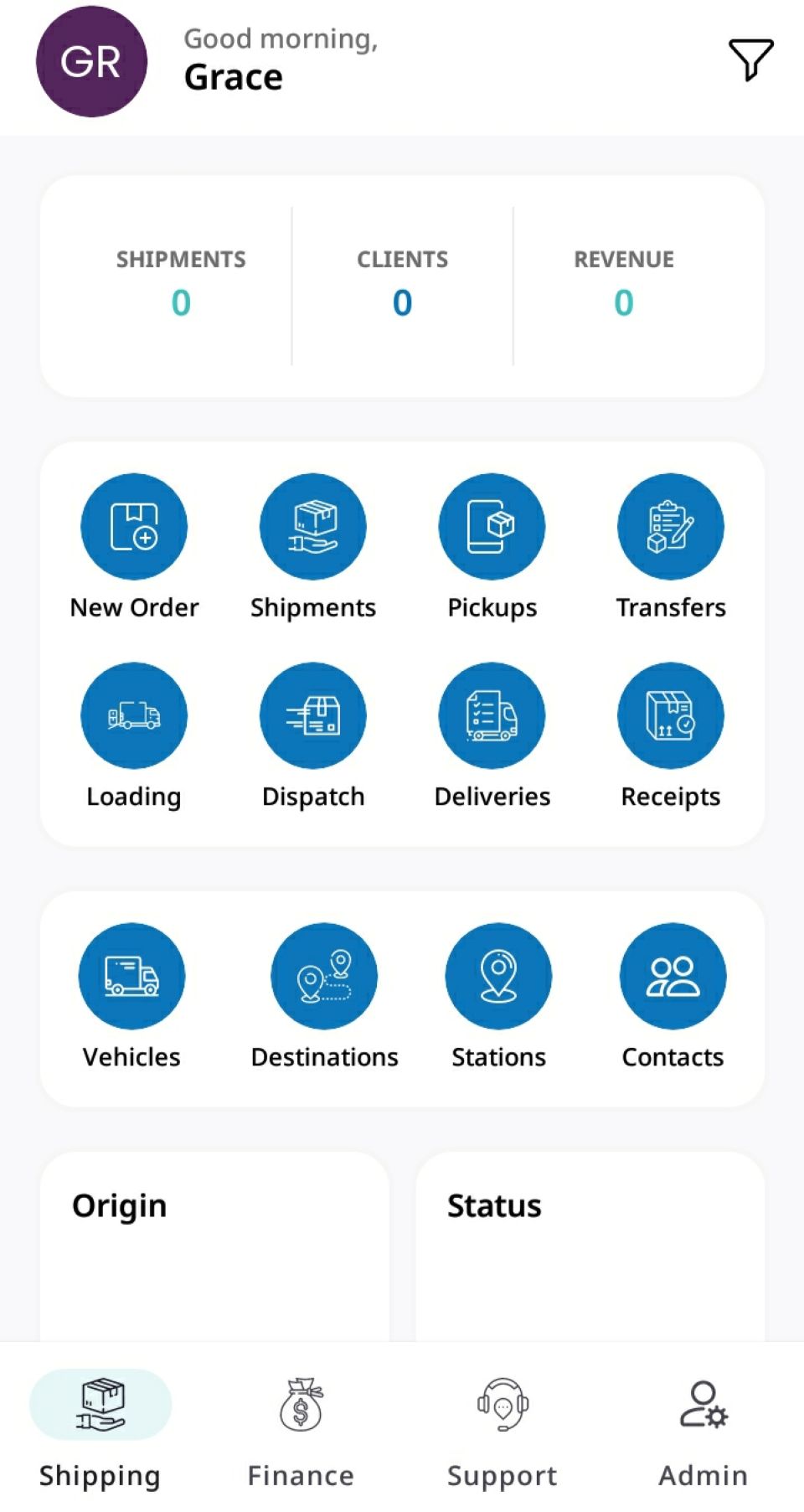
From the main dashboard, tap New Order to access the Order Preferences screen.
Bill To: Choose Sender (defaults to Cash💵) or Recipient (switches to Cash on Delivery🚚💳).
Service Option:
- Station Drop-off🏢: Automatically routes parcels to the nearest station based on the recipient's address.
- Door-to-Door🚪: Uses Google Maps integrations for direct doorstep pickup and delivery.
- Station Pickup/Door Delivery🔀: Allows manual address entry alongside station selection.
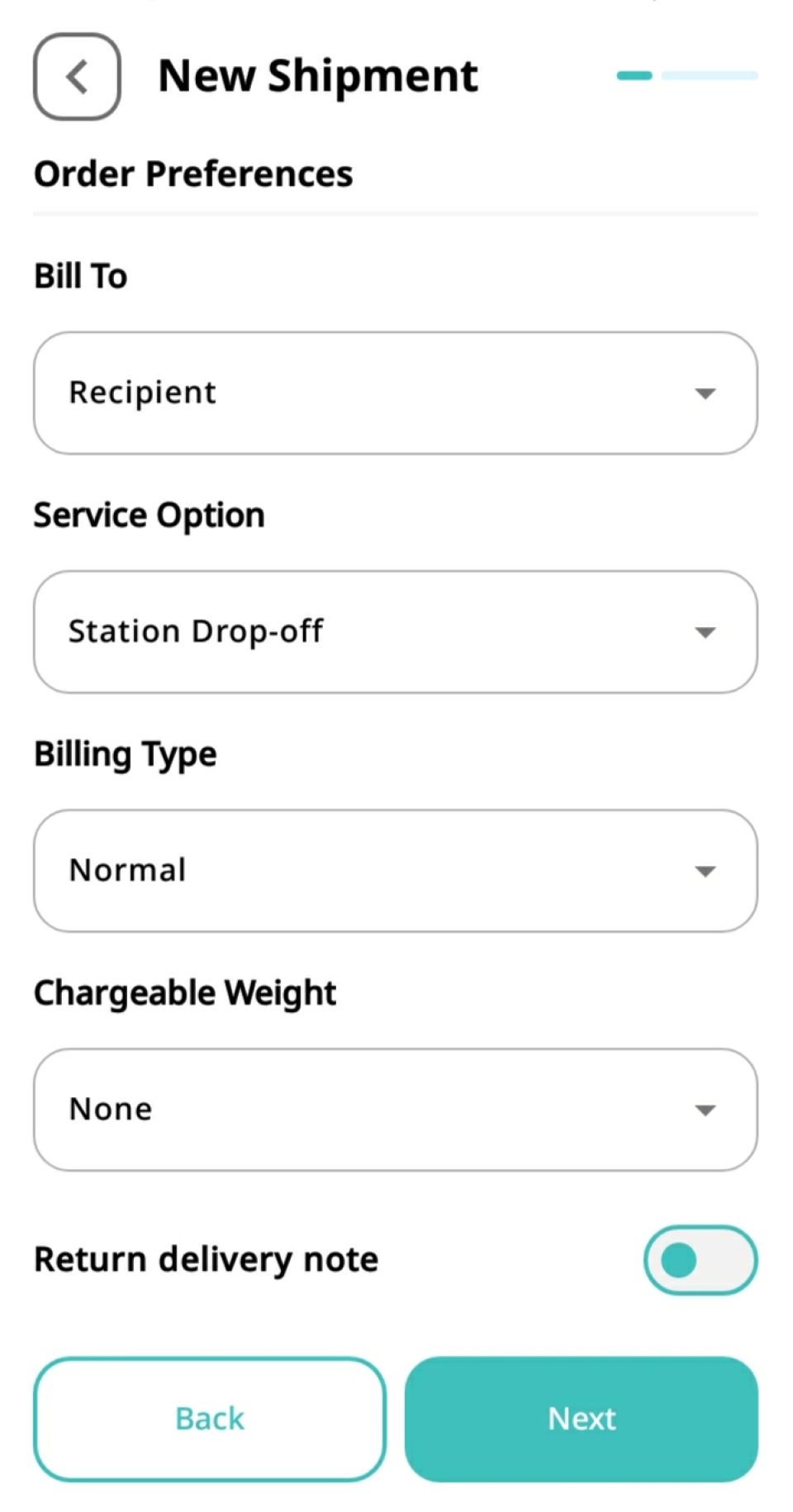
Billing Type: Keep as Normal for standard rates or select Free Delivery for complimentary dispatches.
Chargeable Weight⚖️: Choose your calculation model: None (flat fee), Volumetric, Actual, or Actual/Volumetric.
Return Delivery Note📑: Toggle ON if physical paperwork must be returned to origin. Enter the Delivery Note ID (an additional return fee applies).
STEP 2: ENTER SENDER AND RECIPIENT DETAILS
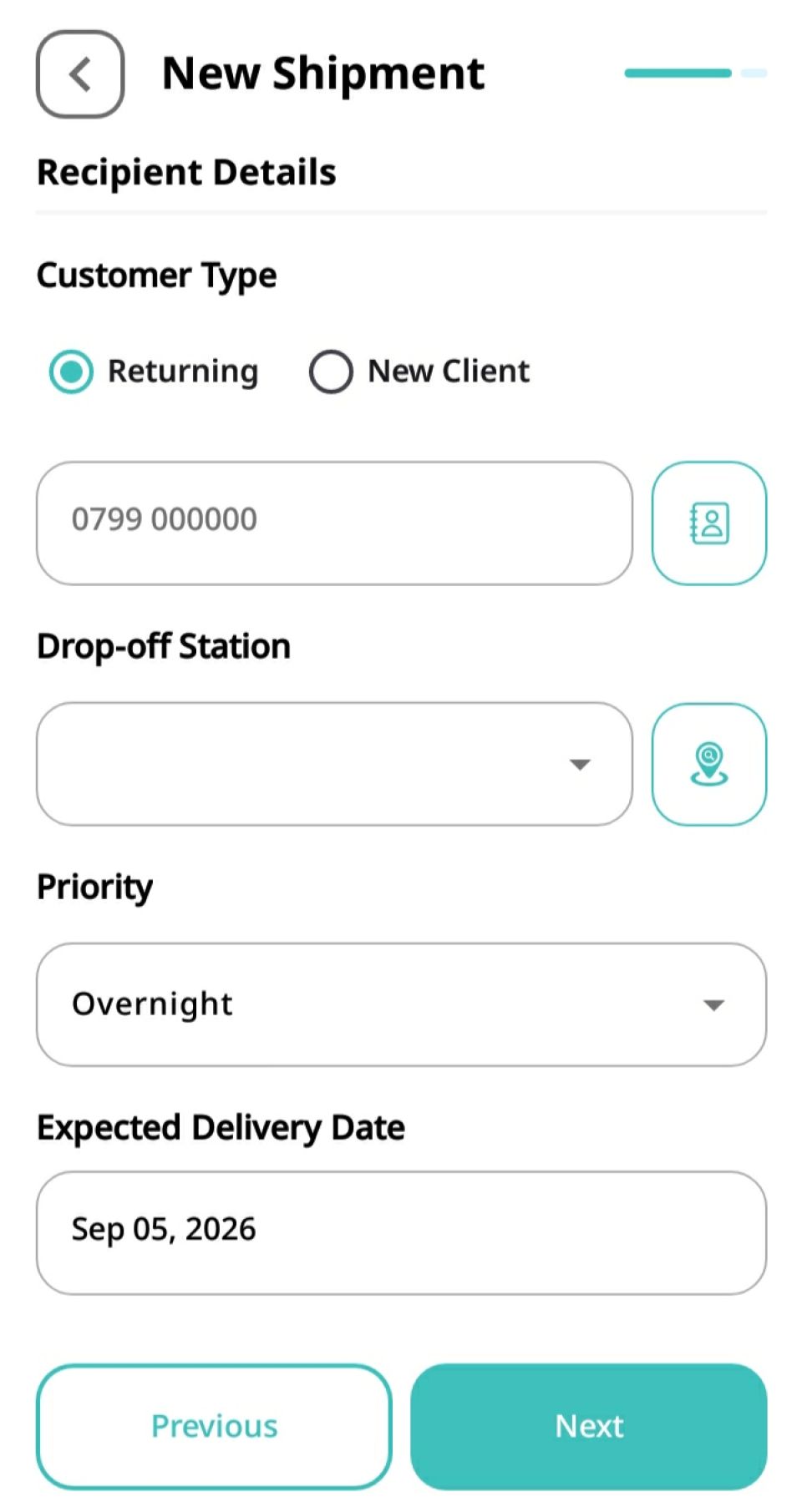
For both Sender and Recipient steps:
- Customer Type🆔: Select Returning Client to auto-fill saved profiles via phone search, or tap Create for a New Client (Individual👤 or Corporate🏢).
- Location Routing📍: Confirm specific pickup or drop-off addresses using Google Maps pin placement or station dropdowns.
- Dispatch and Schedule⏱️: Set delivery Priority (Standard or Express/Overnight⚡) and select the Expected Delivery Date📅.
STEP 3: ADD SHIPMENT DETAILS AND MULTI-ITEM BOOKINGS📦
Configure individual package specifications:
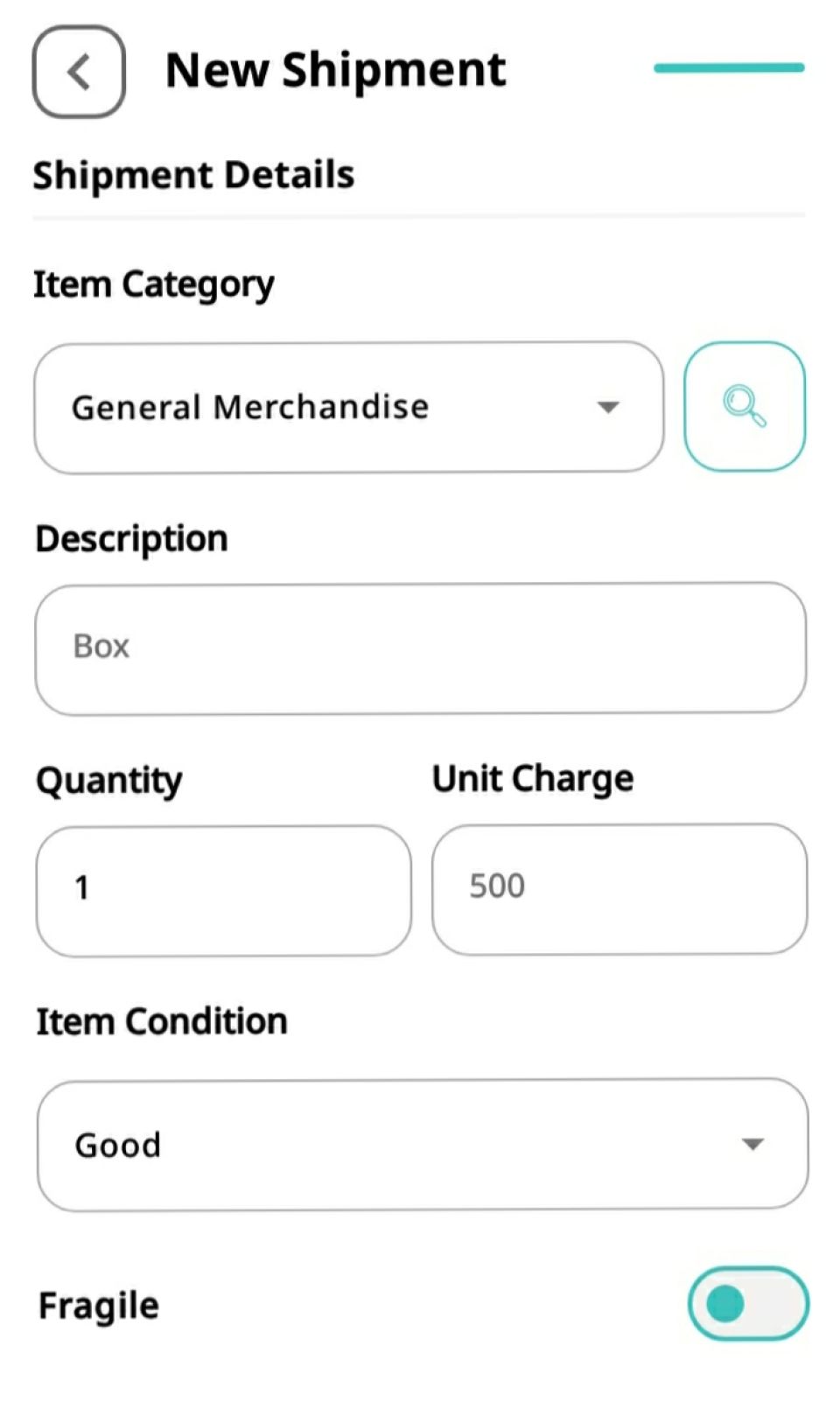
- Category and Description📝: Select the item type (e.g., General Merchandise), write a brief description, and enter the Quantity.
- Pricing and Dimensions📐: Standard rates auto-populate under Unit Charge (editable for custom pricing). For volumetric rates, enter Length, Width, and Height (cm) to auto-calculate Volumetric Weight. Enter physical weight under Actual Weight (Kg).
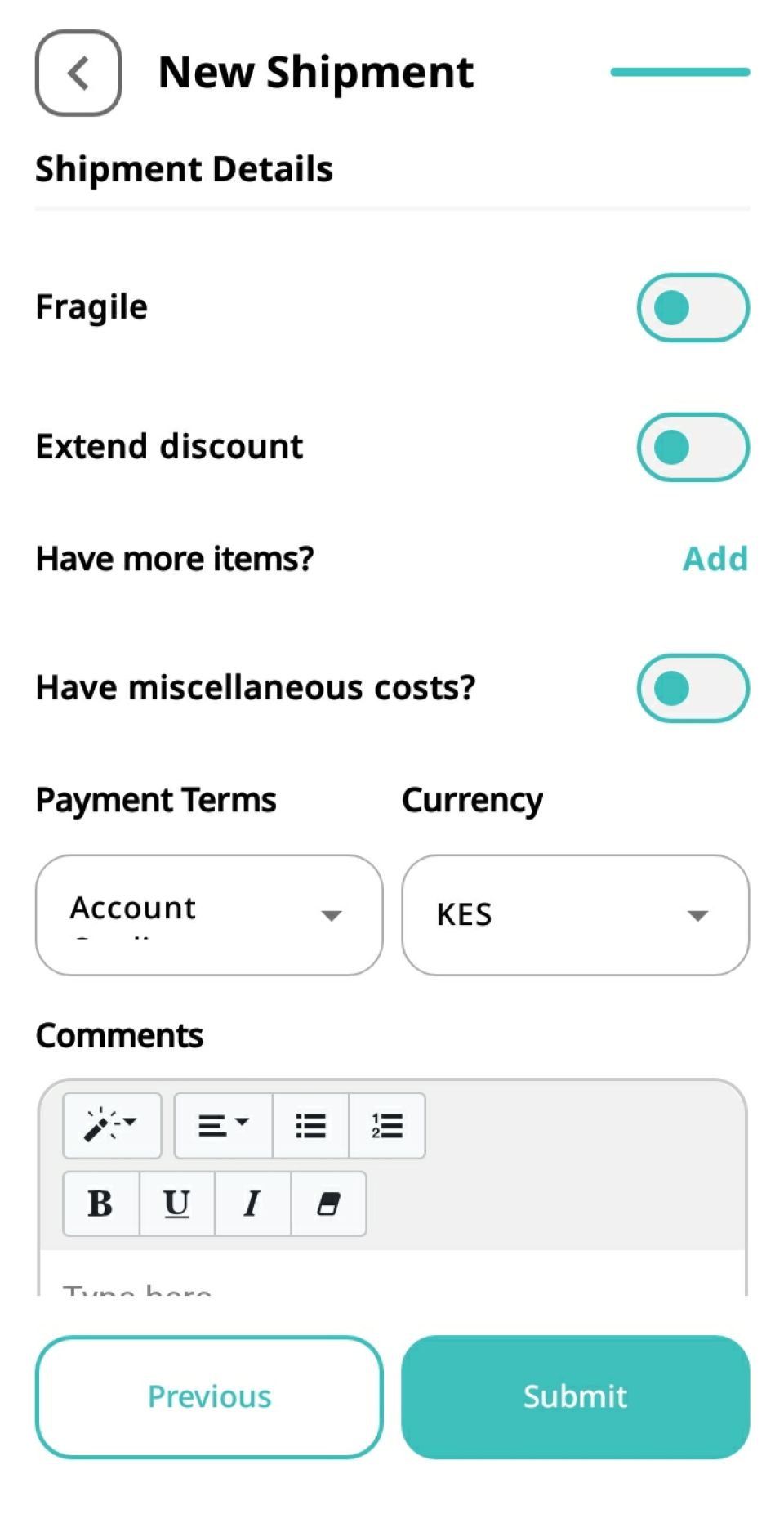
- Condition and Safety Controls⚠️: Select item condition (Good✅, Damaged⚠️, Broken❌). Selecting pre-existing damage requires uploading pickup photos📸. Toggle Fragile to ON if delicate handling is required.
- Multiple Items➕: Tap Add at the bottom of the form to attach additional packages under the same master shipment.
- Logistics Costs and Terms💰: Toggle Have miscellaneous costs? to add offloading or packaging fees. Set Payment Terms (Prepaid or Pay oelivery), select the currency💱, and add driver comments💬.
STEP 4: REVIEW FINANCIAL BREAKDOWN AND SUBMIT
Tap Submit to review the live financial summary, which itemizes subtotal, applicable VAT, fuel surcharges, miscellaneous fees, and discounts. Once verified, tap Submit at the bottom to finalize the booking🎉.
STEP 5: POST-BOOKING CONFIRMATION AND UNIQUE ITEM IDS🖨️
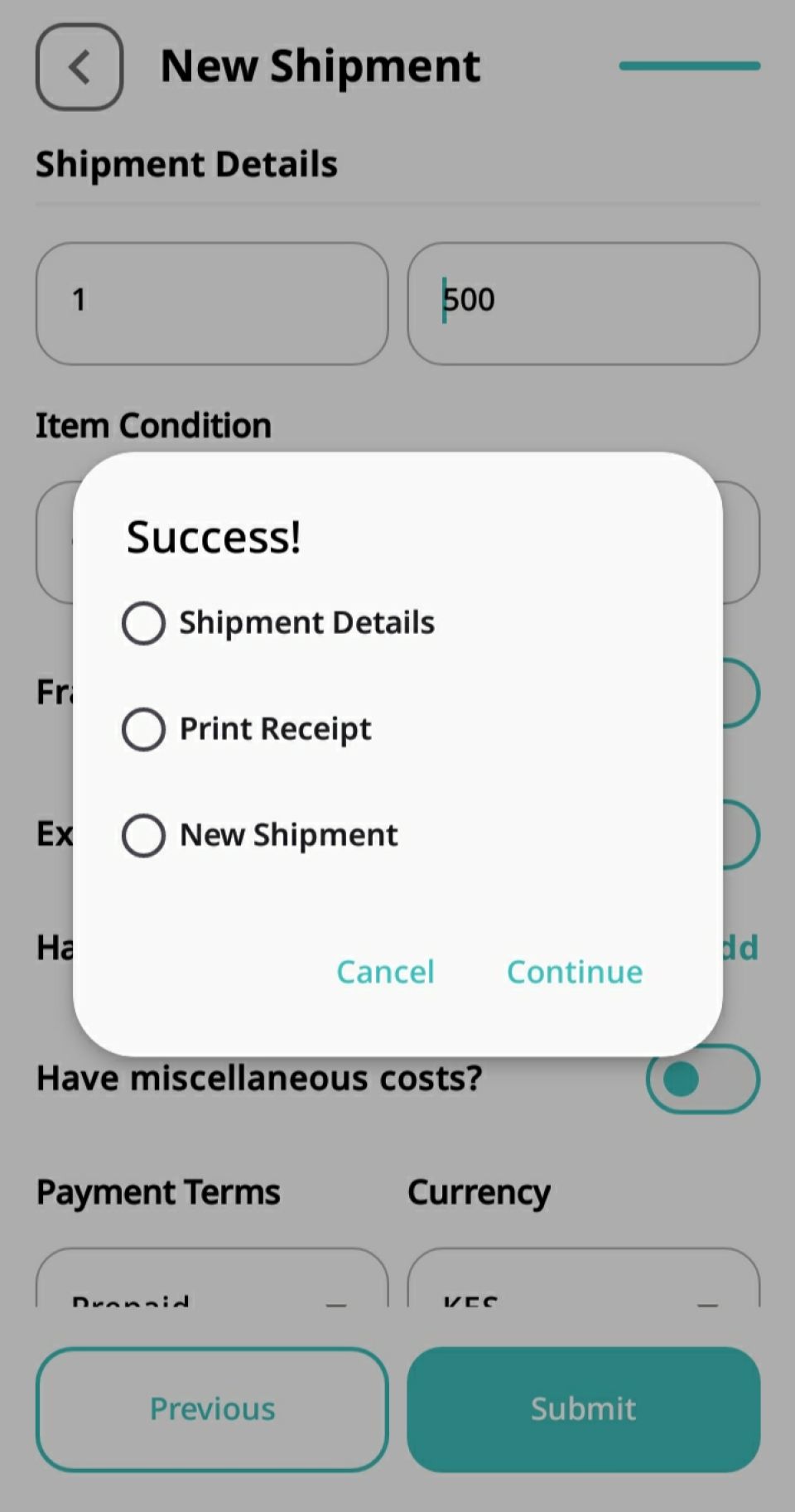
Upon submission, a confirmation pop-up gives you three options: Print Receipt for thermal printing 📄, start a New Shipment 🔄, or tap Shipment Details to open the comprehensive, form-style order summary.
Here is what each section in the Shipment Details view represents:
Recipient Details 👤: Located at the top, providing the recipient's full contact profile and a direct-call icon for quick communication 📞.
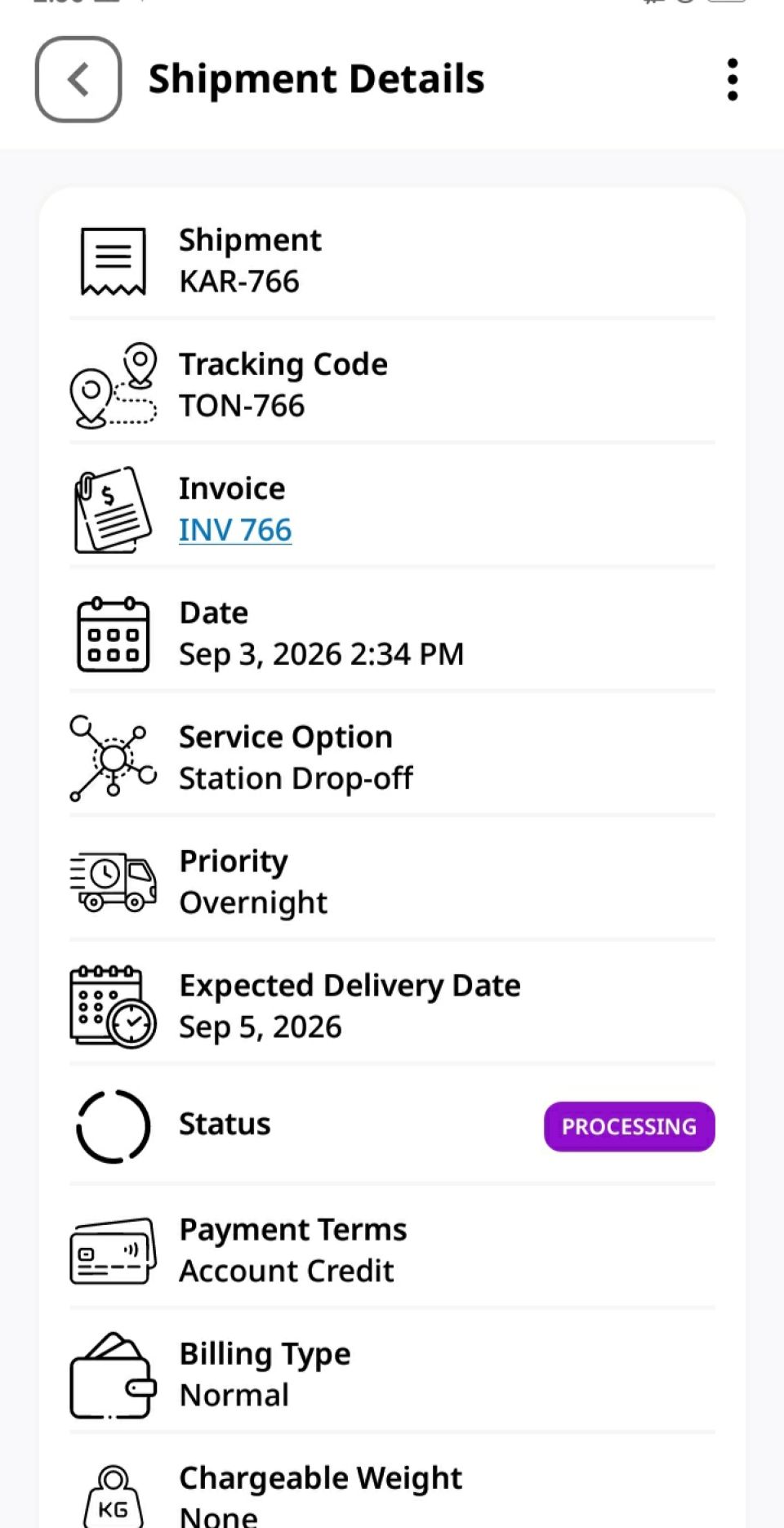
Shipment Identifiers and Logistics Setup 🆔: Contains master tracking indicators including the Shipment Code, unique Tracking Code, and a clickable Invoice link. It logs the booking timestamp, Service Option, Priority speed, Expected Delivery Date, real-time Status badge (e.g., Processing), Payment Terms, Billing Type, and Chargeable Weight logic.
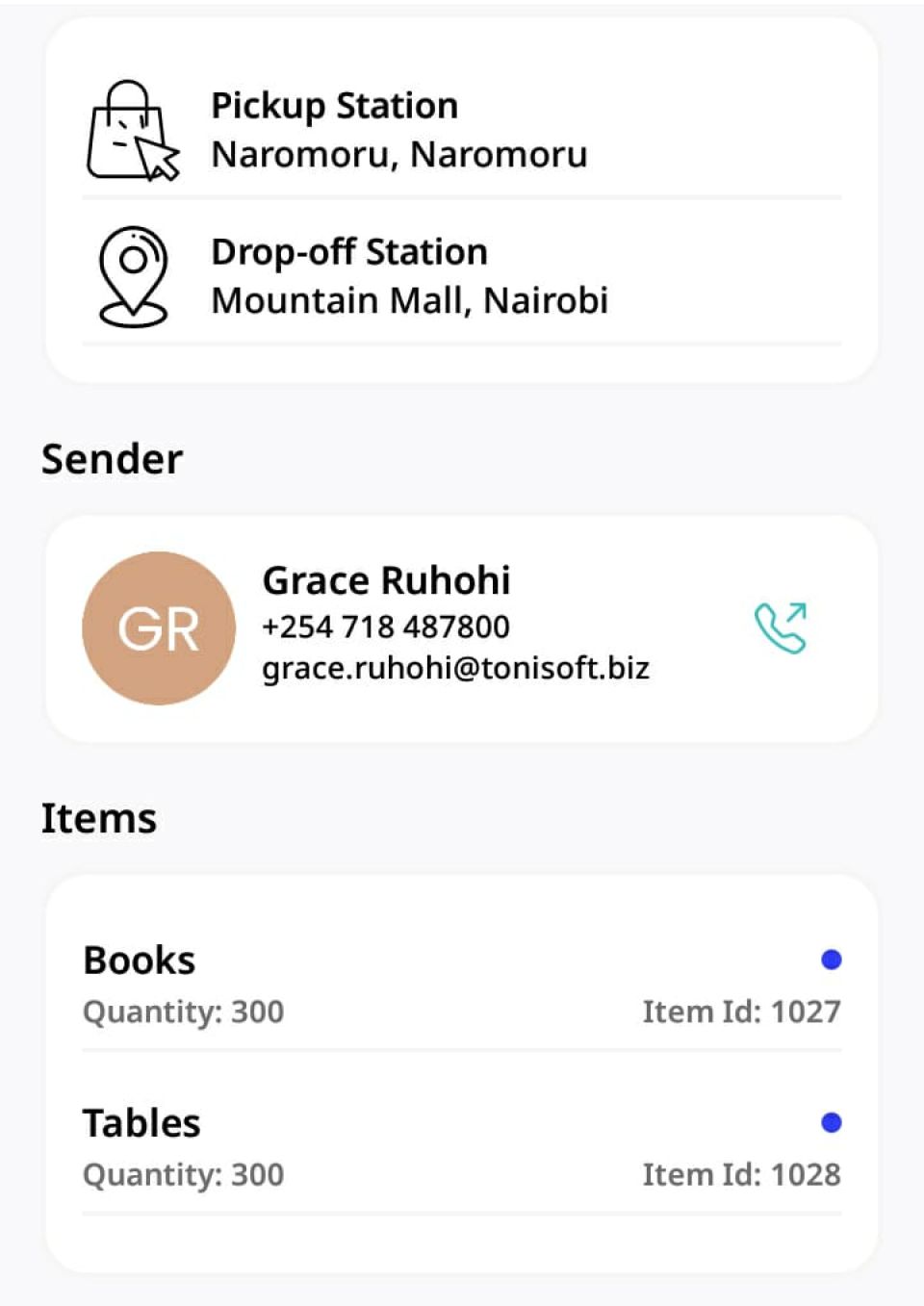
Origin and Destination Routing 📍: Displays clear key-value address pairs outlining the Pickup Station, Pickup Address, Drop-off Station, and Drop-off Address, alongside the sender’s contact card and direct call button.
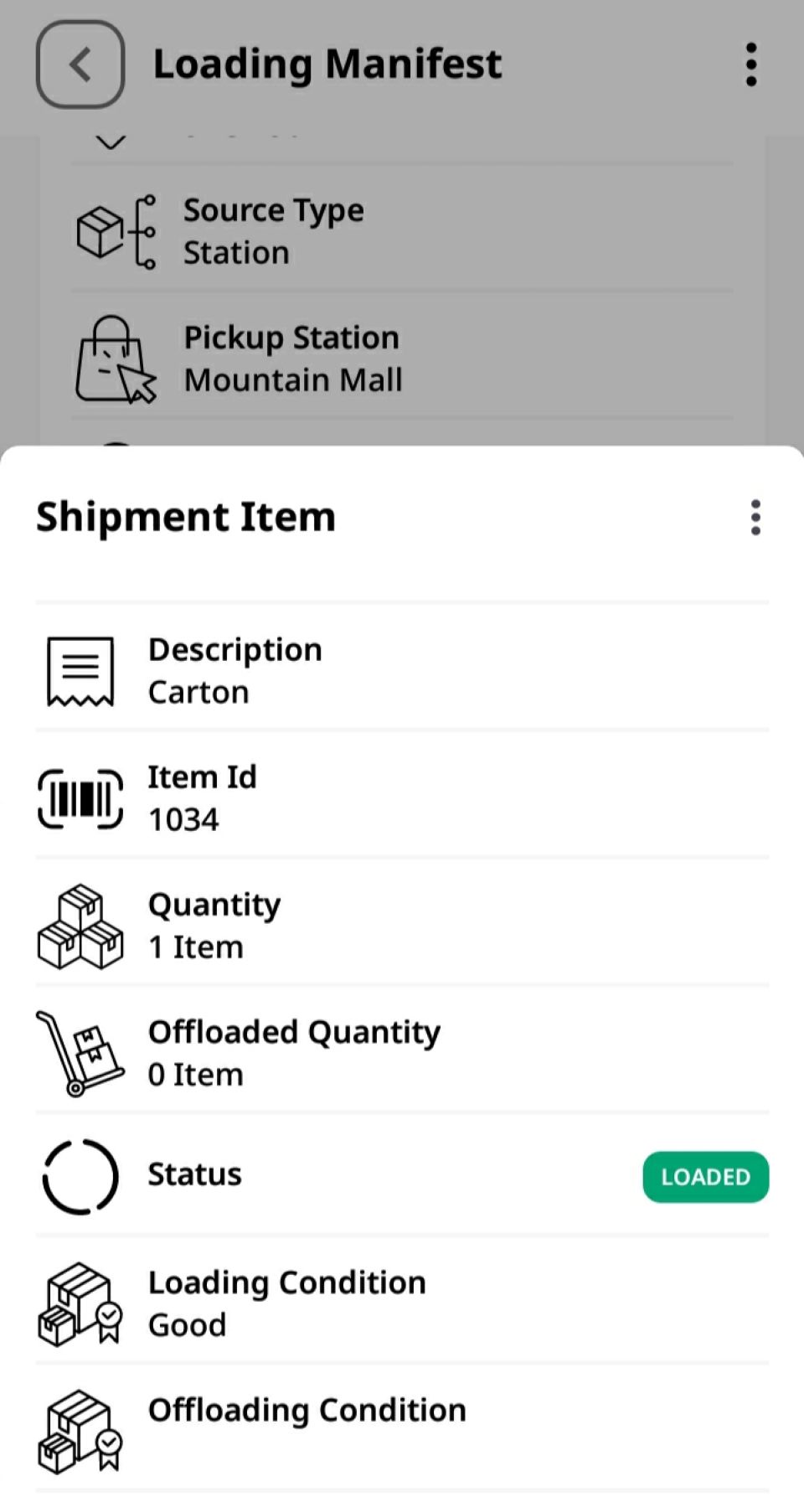
Items Breakdown 🧰: Lists every individual package grouped under the shipment, showing package categories, quantities, and their individual system-assigned Item IDs.
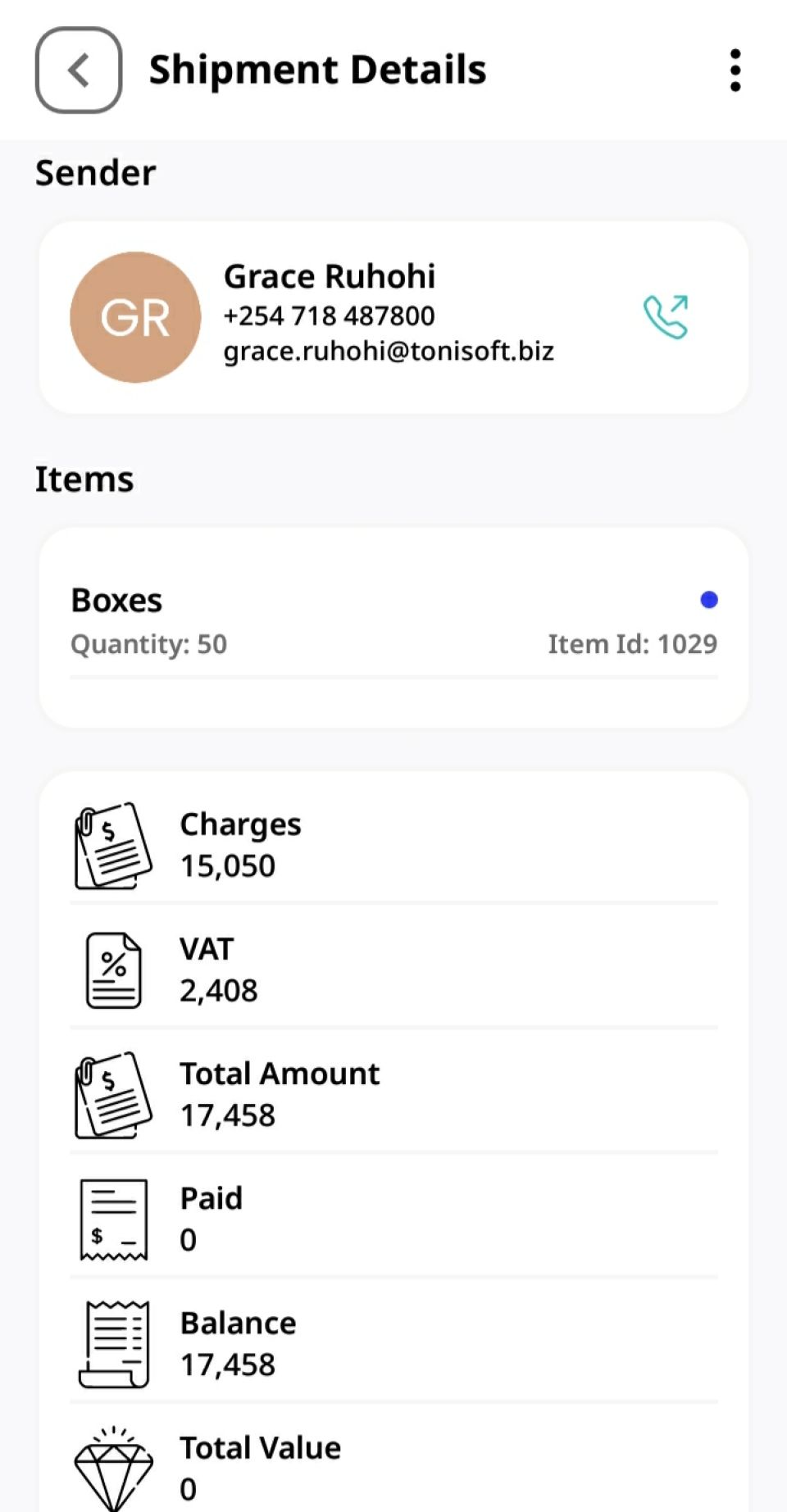
Financial Overview 💵: Highlights key monetary totals including base Charges, calculated VAT, Total Amount, Paid amount, remaining Balance, and declared Total Value.
Cost Breakdown 🧾: Details individual line charges per item type alongside operational surcharges (like Fuel Surcharge).
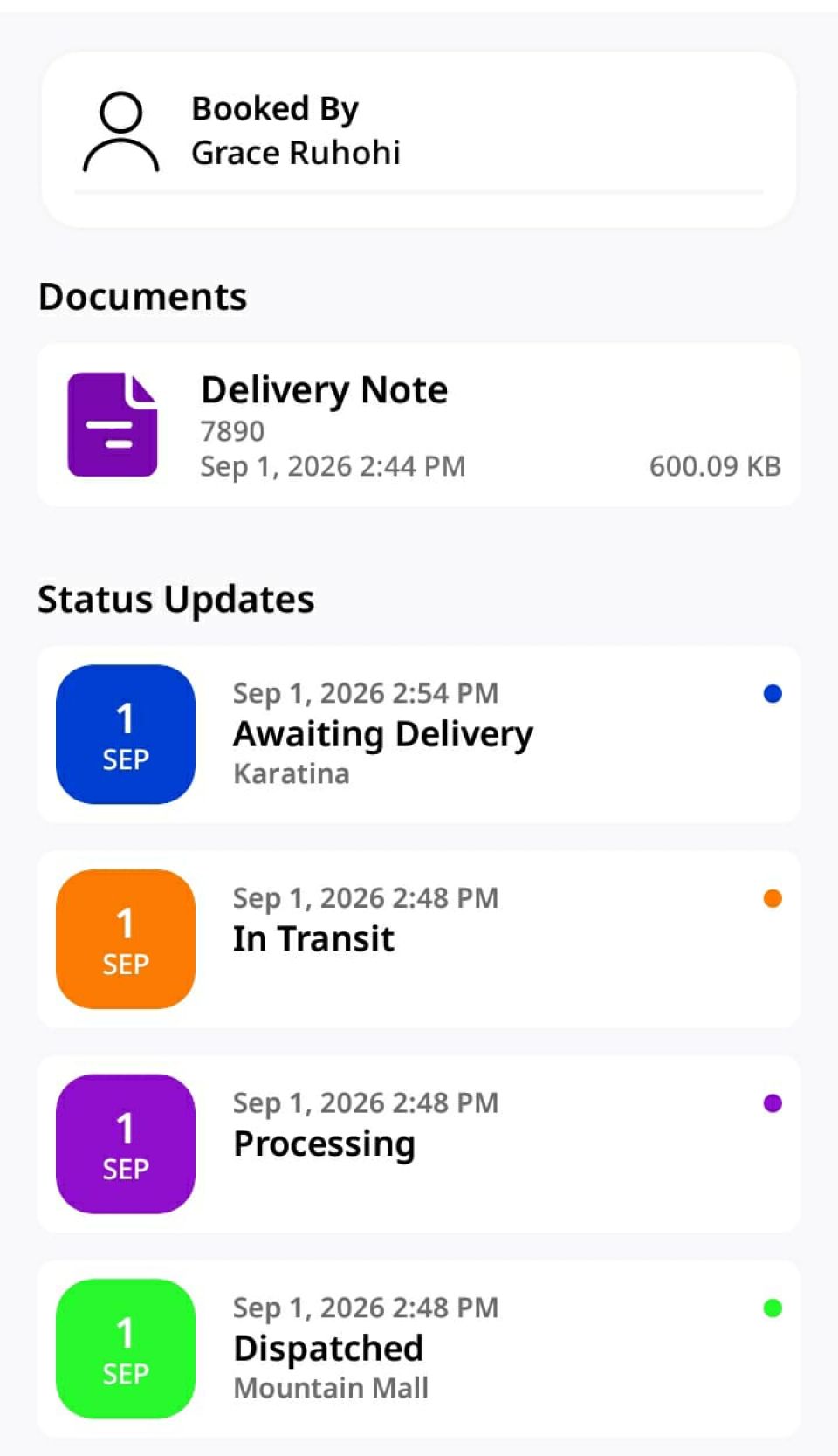
Audit Trail and Timeline ⏱️: Identifies who booked the shipment, links attached documentation (such as Delivery Notes), and records a live Status Updates timeline tracking every transit milestone from dispatch to final delivery.
Crucial Operational Requirement: Unique Item IDs 🏷️
CargoPal assigns a unique Item ID to every individual package in an order. While a shipment may contain multiple packages, the Item ID isolates and tracks each physical unit independently thus eliminating mix-ups during loading, transit, and branch sorting.
During booking, this unique Item ID must be physically written or labeled directly onto the package and recorded on the official waybill to ensure instant verification at every checkpoint 🔍